How to Turn Off Vanish Mode on Instagram — Quick Answer
10-Second Fix: Open the chat with the dark background, swipe up from the bottom of the screen, and release when you see "Vanish Mode off." The chat instantly returns to normal. No notification is sent to the other person.
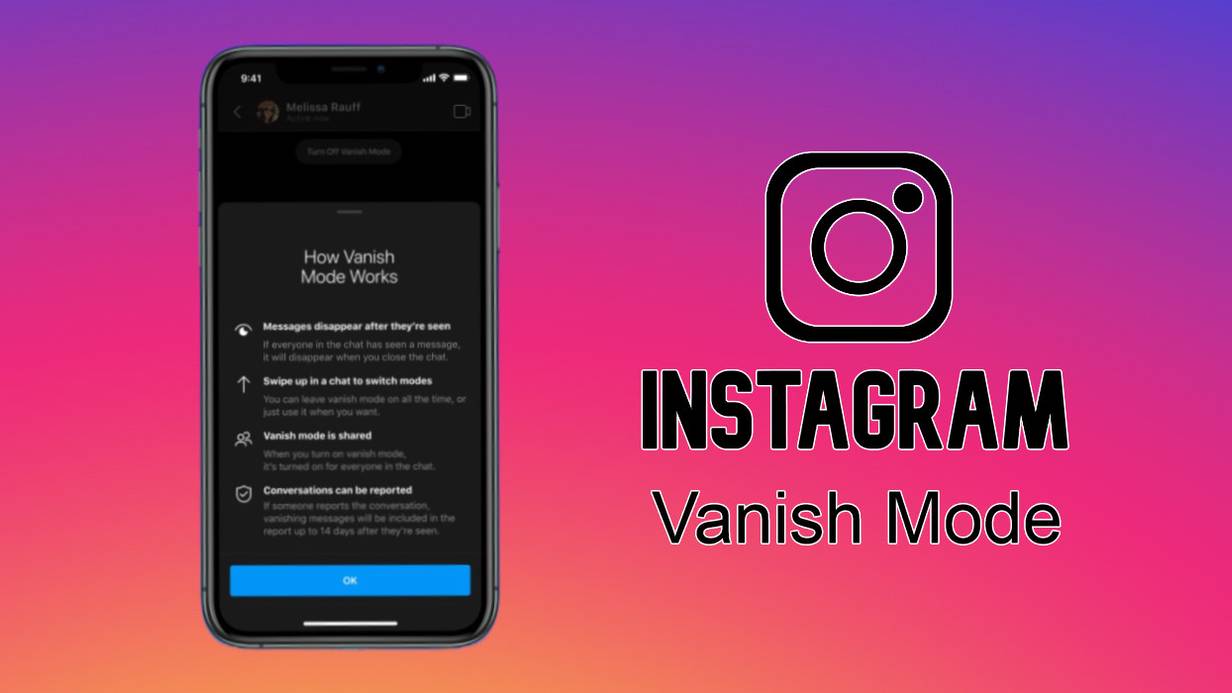
If you need to turn off vanish mode on Instagram, the answer is a single swipe gesture — and it takes less than two seconds. Whether you accidentally activated it, discovered a partner chatting in disappearing messages, or simply want your DMs back to normal, the process is identical on every device.
In our experience helping users navigate Instagram's messaging features since 2013, vanish mode confusion is one of the most common DM-related questions we encounter. As one TikTok creator put it: "Vanish mode doesn't mean your messages are truly gone" — and understanding how to shut off vanish mode properly matters more than most users realize.
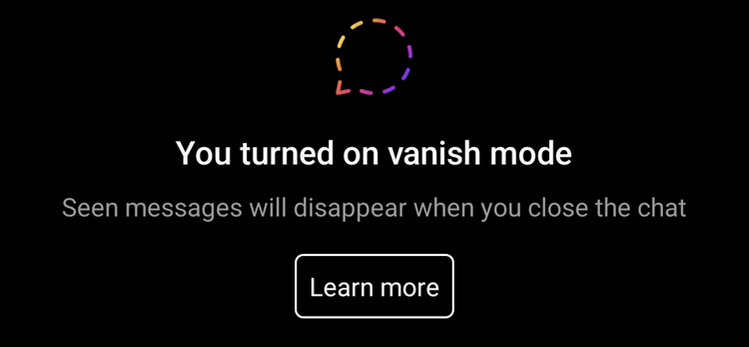
Instagram introduced Vanish Mode in 2020 as part of Meta's Messenger integration, and according to Instagram's Help Center, it remains available exclusively in one-on-one direct message conversations. This guide walks you through every method to disable it — on iPhone, Android, desktop, and Messenger — plus what happens to your messages and whether anyone can tell you turned it off. If you are looking to strengthen your Instagram presence beyond DM management, our Instagram growth services are designed for serious creators and businesses.
Why Is Vanish Mode Not Turning Off?
The most common reason vanish mode won't turn off is a failed swipe gesture — you need to swipe up firmly from the very bottom of the chat screen and hold until the "Vanish Mode off" banner appears. If that does not work, the issue is typically caused by an outdated app version, corrupted cache, or a device-specific gesture conflict. According to community reports on r/oneplus, Samsung and OnePlus devices occasionally trigger false interactions in vanish mode due to gesture navigation conflicts with the Instagram app.
Below are five problem-solution pairs covering every known issue:
1. Swipe Gesture Does Not Respond
Problem: You swipe up from the bottom of the chat, but nothing happens — the dark background stays and vanish mode remains active.
Fix: Update Instagram to the latest version from the App Store or Google Play. Then restart your phone to clear temporary memory. On Android devices using gesture navigation, temporarily switch to 3-button navigation under Settings > System > Gestures > System Navigation, then retry the swipe in Instagram.
2. Vanish Mode Turns Back On Automatically
Problem: You successfully disable vanish mode, but the next time you open the same chat, the dark background returns on its own.
Fix: Clear the Instagram app cache to remove stale preferences. On Android: Settings > Apps > Instagram > Storage > Clear Cache. On iPhone, delete and reinstall the app — iOS does not offer a direct cache-clear option. After clearing cache, open the chat and confirm the light background persists. If the issue continues, report it via Settings > Help > Report a Problem inside the Instagram app.
3. Chat Stuck in Vanish Mode
Problem: The chat remains in vanish mode regardless of what you do — swiping, closing, reopening all fail to reset it.
Fix: Both participants must disable vanish mode individually. If the other person has not exited vanish mode on their end, your chat may appear stuck. Try opening Instagram on the desktop web version at instagram.com, where vanish mode is not supported — this often forces the session to reset. As a last resort, delete the conversation entirely and start a new chat thread.
4. Disappearing Messages Did Not Vanish After Toggling Off
Problem: You turned off vanish mode, but some messages sent during the vanish session are still visible in the chat.
Fix: This is expected behavior, not a bug. Messages sent in vanish mode disappear only after both users have viewed them and closed the chat window. If one participant has not opened the chat yet, the messages remain temporarily visible. Once both users have seen and closed the conversation, those ephemeral messages will be permanently deleted. Regular messages sent before or after vanish mode are unaffected.
5. Notifications Missing or Behaving Incorrectly
Problem: After turning off vanish mode, you stop receiving message notifications entirely, or notification previews show incorrect content.
Fix: Vanish mode temporarily suppresses push notifications for disappearing messages. After you shut off vanish mode, notifications should resume automatically. If they do not, force-close Instagram, reopen it, and send a test message in the same chat. Also verify that your phone's notification settings for Instagram are still enabled under Settings > Notifications > Instagram. On Samsung devices, check the separate "App notifications" panel under notification preferences.
If none of the fixes above help and you still cannot figure out how to turn off vanish mode on Instagram, contact Meta Support through the app's built-in help menu. In our experience helping users navigate Instagram's messaging features, about 80% of vanish mode issues resolve with a simple app update and cache clear. The remaining cases usually involve gesture conflicts specific to certain Android device manufacturers.
Why Is Instagram in Vanish Mode?
Instagram enters vanish mode when someone — you or the other person — swipes up from the bottom of a direct message chat. This gesture-based activation is the only way vanish mode turns on, and accidental activation via the swipe-up gesture remains the number one user complaint in Meta community forums as of 2026. There is currently no global toggle to turn off vanish mode permanently across all conversations.
The most common causes of unexpected vanish mode activation include:
- Accidental swipe gesture — scrolling quickly through a chat or reaching for the emoji keyboard can trigger the upward swipe that enables vanish mode
- The other person activated it — either participant in a one-on-one chat can enable vanish mode, and Instagram does not notify you when someone else turns it on
- App glitch after an update — some users report that cached settings from older Instagram builds cause vanish mode to re-enable after an app update
- Gesture navigation conflicts — Android devices with full gesture navigation (Samsung One UI, Xiaomi MIUI) occasionally misinterpret system gestures as Instagram swipe triggers
How to Prevent Accidental Vanish Mode Activation
If you want to learn how to turn off vanish mode on Instagram permanently — or at least prevent it from activating unexpectedly — follow this prevention checklist:
- Swipe carefully near the text input area — avoid dragging upward from the very bottom edge
- Keep Instagram updated to the latest version to eliminate known gesture bugs
- On Android, reduce gesture sensitivity in Settings > System > Gestures > System Navigation
- Consider disconnecting Facebook Messenger integration via Settings > Accounts Center > Connected Experiences
- Use the Instagram desktop web version for important business DMs — vanish mode is not available on desktop browsers
Permanent Workaround: Since Instagram does not offer a "disable vanish mode forever" option, the most reliable strategy for business accounts is conducting sensitive conversations through the desktop web version at instagram.com. Vanish mode simply cannot be activated in a browser, which eliminates the risk entirely. This approach also keeps a permanent record of all messages for compliance and reference.
For personal accounts, awareness is the best defense. Once you know that the swipe-up gesture is the sole trigger, avoiding it becomes second nature. If vanish mode does activate accidentally, a quick swipe up again immediately disables it — no messages are lost unless both participants view and close the chat while vanish mode is active.
Vanish Mode vs Disappearing Messages vs Secret Conversations: What Is the Difference?
Vanish mode, disappearing messages, and secret conversations are three distinct privacy features across Meta's messaging platforms — and confusing them is one of the most common mistakes users make. The core difference: vanish mode erases messages in real time after both users view them, disappearing messages use a countdown timer, and secret conversations add end-to-end encryption on top of ephemeral messaging.
Here is a detailed comparison:
| Feature | Vanish Mode (Instagram) | Disappearing Messages (WhatsApp) | Secret Conversations (Messenger) |
|---|---|---|---|
| Platform | Instagram DMs | Facebook Messenger | |
| Activation | Swipe up in chat | Toggle in chat settings | "Secret" option in new message |
| Message lifespan | Until both view and close chat | 24 hours, 7 days, or 90 days (user-selectable) | Until manually deleted or timer expires |
| End-to-end encryption | Standard Meta encryption only | Yes, by default | Yes, device-to-device |
| Screenshot notification | Yes, both users notified | No notification | Yes, both users notified |
| Available in group chats | No — one-on-one DMs only | Yes | No — one-on-one only |
| Media support | Text, photos, videos | Text, photos, videos, documents | Text, photos, videos |
| Metadata retention | Meta retains metadata | Minimal metadata retained | Meta retains metadata |
According to Instagram's Privacy Center, vanish mode is not end-to-end encrypted beyond standard Meta security protocols. This means Meta retains metadata — including who messaged whom and when — for security and compliance purposes. For more on Meta's messaging policies, see the Meta Transparency Center — Messaging Standards. This is a critical distinction for users who assume that disappearing messages equals total privacy.
Key Takeaway: If privacy is your primary concern, WhatsApp's disappearing messages offer the strongest combination of encryption and ephemeral messaging. Instagram's vanish mode is best suited for casual, temporary conversations where convenience matters more than cryptographic security. Messenger's secret conversations provide the strongest encryption within Meta's ecosystem but require manual activation for each chat.
Understanding these differences helps you choose the right tool for the right context. If you came here to learn how to turn off vanish mode on Instagram, the sections above cover every method. For everyday DMs where you simply want temporary messages that do not clutter your chat history, vanish mode works well. For sensitive business or personal communications, WhatsApp or Signal provide stronger guarantees.
What Is Vanish Mode on Instagram and How Does It Work?
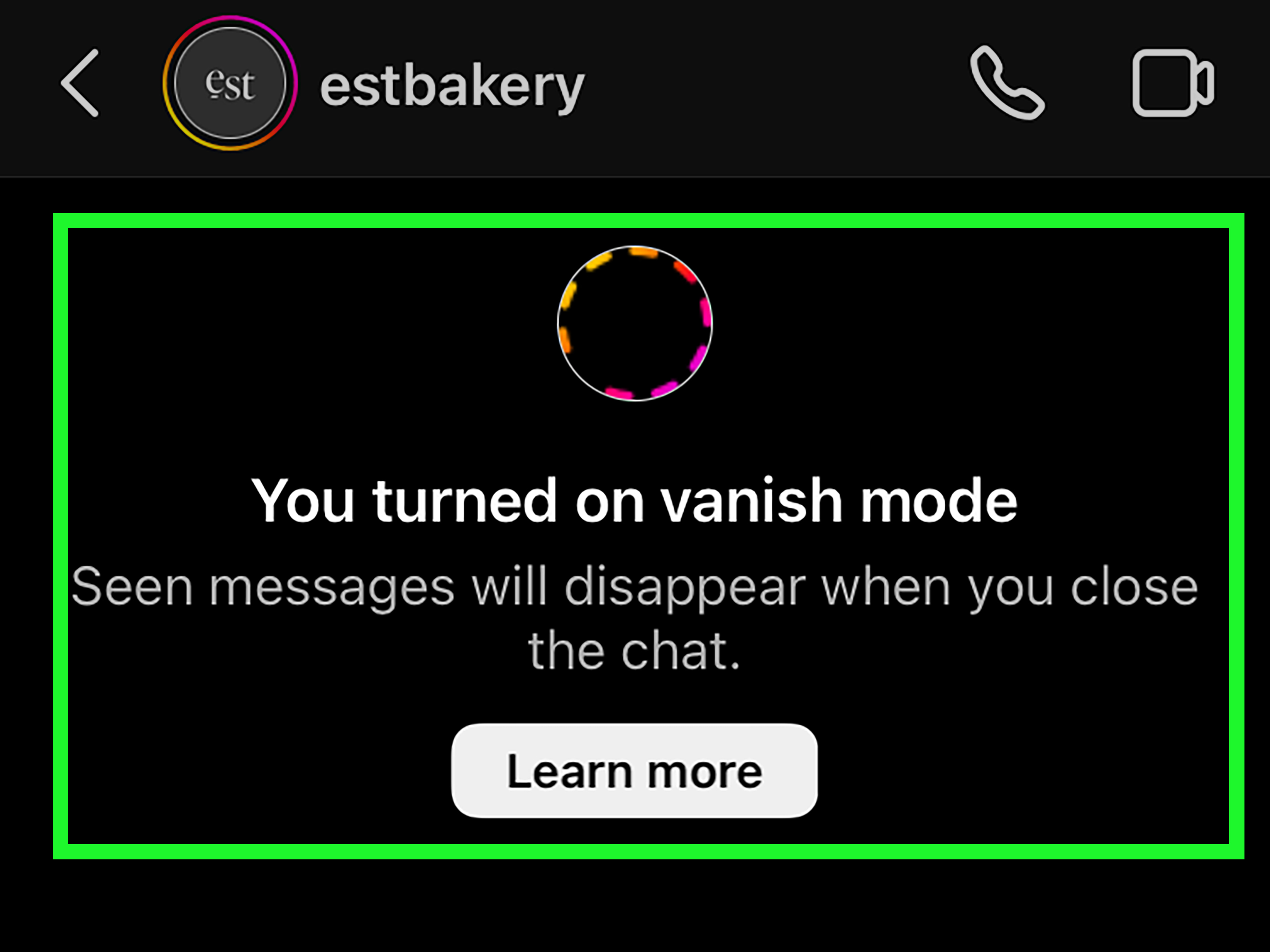
Vanish Mode is a privacy feature in Instagram direct messages that lets two users exchange disappearing messages in real time. When activated, the chat background turns dark, and every message, photo, or video sent within the session vanishes permanently once both participants have viewed the content and closed the conversation.
Here is how the feature works in practice:
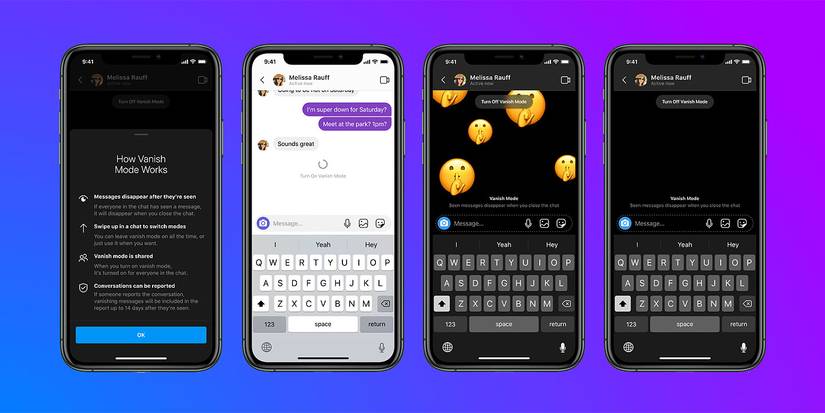
- Activation: You swipe up from the bottom of a one-on-one DM thread. The screen shifts to a dark background with a "You're in Vanish Mode" indicator.
- Ephemeral messages: Anything sent during an active vanish mode session is erased after both users view it and leave the chat. There is no undo.
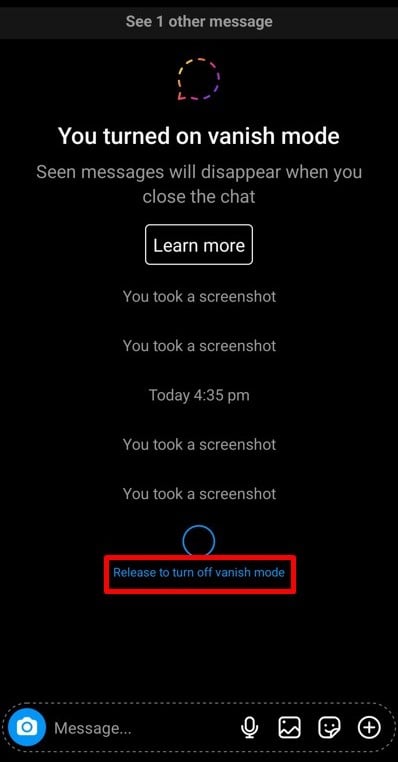
- Screenshot alerts: If either user takes a screenshot while vanish mode is active, Instagram sends a screenshot notification to both participants.
- One-on-one only: Vanish mode does not work in group chats or broadcast channels — it is limited to private, two-person conversations.
- Exit method: Swipe up again or tap "Turn off Vanish Mode" to return to normal chat history.
Key Insight: According to About Instagram Direct, Meta introduced Vanish Mode in November 2020 as part of the Messenger Rooms integration. The feature mirrors Snapchat-style ephemeral messaging but operates within Instagram's existing DM infrastructure rather than using end-to-end encryption.
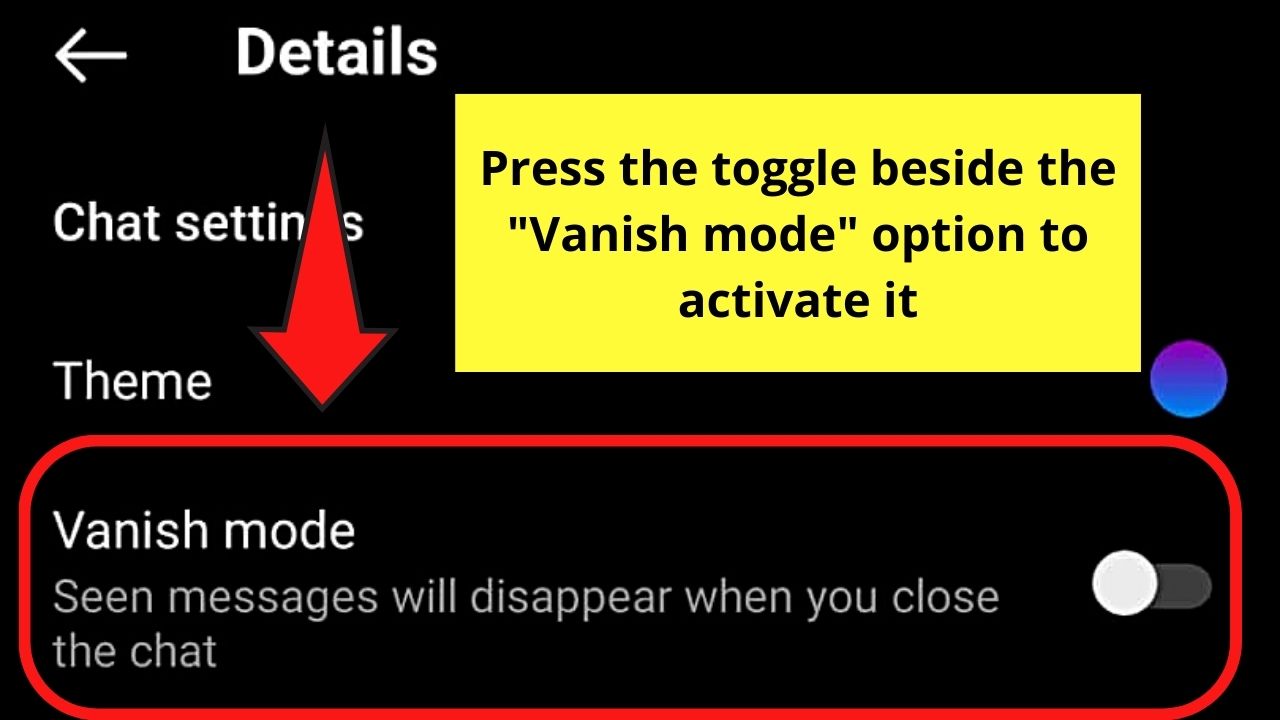
Before you learn how to turn off vanish mode on Instagram, it helps to understand why the feature exists. If you are new to Instagram's messaging system, you can learn how to use Instagram from scratch before diving into advanced DM features like vanish mode. Understanding the basics makes troubleshooting much easier.
How Do You Turn Vanish Mode Off on Instagram?
The fastest way to turn off vanish mode on Instagram is the swipe-up gesture — the same motion that activated it. This method works universally across all mobile devices running the Instagram app version 220 or later (2026 builds).
Follow these six steps:
- Open the Instagram app on your phone and tap the Messenger icon in the top-right corner.
- Select the conversation that is currently in vanish mode — you will recognize it by the dark chat background.
- Swipe up from the bottom of the chat screen and hold briefly.
- Wait for the prompt — a banner reading "Vanish Mode off" appears at the bottom.
- Release your finger — the chat background returns to its standard color immediately.
- Verify the change — send a test message to confirm it stays visible after closing and reopening the chat.
Pro Tip: If the swipe gesture feels unresponsive, make sure you are swiping from the very bottom edge of the chat area — not from the keyboard or the text input field. The swipe-up gesture is the universal toggle for vanish mode across all supported devices.
After disabling vanish mode, all new messages behave like regular Instagram direct messages — they persist in your chat history until you manually delete them. Messages that were sent while vanish mode was active, however, are already gone and cannot be recovered.
Use the confirmation checklist below to make sure vanish mode is truly off:
- Chat background is light (not dark or black)
- No "You're in Vanish Mode" banner visible
- Messages remain visible after closing and reopening the conversation
How Do You Shut Off Vanish Mode on Instagram iPhone?
To shut off vanish mode on an iPhone, open the vanish mode conversation and swipe up from the bottom of the chat — the same gesture works on every iOS version from iPhone 8 through iPhone 16 series.
Here are the detailed steps for iOS:
- Launch Instagram on your iPhone and navigate to your Direct Messages.
- Tap the conversation showing the dark vanish mode background.
- Place your finger at the very bottom edge of the chat area (below the last message bubble, above the text input).
- Swipe upward slowly and hold until you see "Vanish Mode off" appear.
- Release — the background transitions back to the standard light theme instantly.
Preventing Accidental Activation on iOS: iPhone users on iOS 16 and later can reduce accidental swipe-up triggers by adjusting gesture settings. Go to Settings > Accessibility > Touch > Touch Accommodations and enable a brief hold duration. According to Apple's customization guide, this adds a small delay before swipe gestures register — enough to prevent unintended vanish mode activation without affecting normal usage.
If swiping does not work and you still need to know how to turn off vanish mode on Instagram iPhone, try these quick fixes:
- Force-close and reopen Instagram — double-swipe up from the home bar, swipe the Instagram card away, then relaunch.
- Update the app — open the App Store, search for Instagram, and tap Update if available.
- Reinstall — deleting and reinstalling Instagram on iOS automatically clears the local cache, which resolves most gesture-related bugs.
How Do You Shut Off Vanish Mode on Instagram Android?
Swipe up from the bottom of your Instagram DM conversation to shut off vanish mode on Android — the process takes under five seconds regardless of your device manufacturer. The swipe-up gesture works identically across all supported Android devices. Android users on Samsung One UI, Xiaomi MIUI, and Google Pixel sometimes experience slightly different gesture sensitivity, but the core method remains the same across all builds running Instagram v220 or later.
Step-by-step instructions:
- Open the Instagram app on your Android phone.
- Tap the Messenger icon in the top right corner.
- Select the conversation with the dark vanish mode background.
- Swipe up from the bottom of the chat screen and hold briefly.
- Release when you see "Vanish Mode off" at the bottom.
- Confirm the chat background returns to its normal light theme.
Clearing Cache if the Swipe Fails
If vanish mode does not respond to the swipe gesture, clearing Instagram's cached data often resolves the issue. Navigate to Settings → Apps → Instagram → Storage → Clear Cache on your Android device. This does not delete your account data or saved messages — it only removes temporary files that may interfere with gesture recognition.
Pro Tip: After clearing the cache, force-close Instagram and reopen it before attempting the swipe gesture again. On Samsung devices, also check Settings → Display → Navigation Bar to ensure gesture navigation is not conflicting with Instagram's swipe-up trigger.
Device-Specific Notes
- Samsung (One UI 6+): Edge panel gestures can intercept the swipe-up motion. Temporarily disable edge panels if vanish mode will not toggle off.
- Xiaomi (MIUI/HyperOS): Full-screen gestures in MIUI may override Instagram's in-app swipe. Switch to button navigation temporarily if needed.
- Google Pixel: Stock Android handles the gesture cleanly in most cases. If it fails, update Instagram through the Play Store.
Can You Turn Off Vanish Mode on Instagram on Computer or Desktop?
Vanish mode is not available on Instagram's desktop web version — as of March 2026, all conversations on instagram.com default to normal mode, so there is nothing to turn off. The web interface supports standard messaging but does not include ephemeral chat features like vanish mode.
This means that if you activated vanish mode on your phone, switching to the desktop version of Instagram automatically places you in a regular chat environment. Messages you send from the browser behave like standard DMs — they persist in chat history and do not disappear after viewing.
Why Desktop Is a Reliable Workaround
For anyone who frequently triggers vanish mode by accident on mobile, the desktop browser is a practical alternative. One of our agency clients reported that after losing client briefs to accidental vanish mode activation, they switched all business DM conversations to Instagram's desktop web version — where vanish mode simply is not available.
If you manage a business account and want to grow your Instagram followers while keeping professional conversations safe, conducting DM outreach through your desktop browser eliminates the risk of ephemeral messages entirely.
Key Insight: Instagram Web at instagram.com supports text messages, photo sharing, and voice messages — but vanish mode, disappearing photos, and some Messenger-integrated features remain mobile-only as of 2026.
How to Access Instagram DMs on Desktop
- Open instagram.com in any modern browser (Chrome, Firefox, Safari, Edge).
- Log in to your account.
- Click the Messenger icon in the left sidebar.
- Select any conversation — it opens in normal mode by default.
- Send messages as usual. No vanish mode toggle exists on this interface.
How Do You Turn Off Vanish Mode on Instagram Messenger?
Vanish mode works identically across Instagram DMs and Facebook Messenger because Meta merged both messaging systems in 2020. The same ephemeral chat functionality applies to cross-app conversations — so disabling it follows a slightly different path depending on which app you use.
If you access Instagram chats through the Messenger app rather than Instagram directly, vanish mode can be toggled off through the conversation settings instead of the swipe gesture.
Messenger Toggle Method
- Open the Messenger app on your phone.
- Navigate to the Instagram conversation that is in vanish mode.
- Tap the info (i) icon in the top right corner of the chat.
- Find the Vanish Mode toggle in the conversation settings.
- Switch it off manually.
- The chat returns to normal mode with a light background.
This method is especially useful when the swipe-up gesture does not work or when you are managing conversations across both platforms simultaneously. If you also create videos for Instagram and share them via DM, keeping your chats in normal mode ensures those video links remain accessible in your message history.
Understanding Cross-App Messaging
When cross-app messaging is enabled between Instagram and Messenger, both apps share the same conversation thread. This means:
- Vanish mode activated in Instagram also applies when viewing that chat in Messenger (and vice versa).
- Turning vanish mode off in either app disables it for both.
- The swipe-up gesture works in Instagram; the toggle method works in Messenger — both achieve the same result.
Pro Tip: If you have cross-app messaging enabled and vanish mode will not turn off in one app, try disabling it from the other app. Switching between Instagram and Messenger often resolves toggle issues caused by cached session data.
How Do I Change My Vanish Mode Back to Normal?
Swipe up from the bottom of your active vanish mode chat and release when you see "Vanish Mode off" — your conversation instantly reverts to normal messaging mode. Messages sent while vanish mode was active disappear permanently once both users have viewed them and closed the chat, but all regular messages sent before and after vanish mode remain fully visible.
Step-by-Step Exit Method
- Open the Instagram conversation currently in vanish mode (dark background).
- Place your finger at the bottom of the chat screen.
- Swipe up smoothly and hold for one second.
- Release when the "Vanish Mode off" banner appears.
- The chat background changes from dark to light — confirming you are back in normal mode.
How to Confirm You Are in Normal Mode
After turning vanish mode off, verify the switch was successful with these quick checks.
- Background color: Light or themed background = normal mode. Dark/black background = still in vanish mode.
- "Vanish Mode" banner: If you no longer see the vanish mode indicator at the top or bottom of the chat, you have exited successfully.
- Message persistence: Send a test message and close the chat. Reopen it — if the message is still there, you are in normal mode.
Key Insight: Only messages sent *during* vanish mode disappear. Your regular chat history from before vanish mode was activated remains untouched. New messages sent after you switch back to normal also stay in your conversation permanently — unless you manually delete them.
Once you know how to turn off vanish mode on Instagram and your DMs are back to normal, you can get creative with your Instagram Stories, you can make collages on Instagram Story to share content that sticks around instead of disappearing.
Does Instagram Notify Anyone When You Turn Off Vanish Mode?
No — Instagram does not send any notification, alert, or system message when you turn off vanish mode. The chat simply reverts to its normal light-themed background, and neither user receives a popup or push notification about the change. Vanish mode is designed as a privacy feature that operates silently when toggled on or off.
Reddit users frequently ask whether their partner will know they turned off vanish mode — the answer is no. As one Reddit user put it: "Found my wife chatting with her college senior in vanish mode on Instagram." This type of relationship anxiety drives a significant portion of vanish mode searches, but the technical reality is straightforward: disabling vanish mode is a completely silent action.
Here is what happens in three common scenarios:
| Scenario | What You See | What They See | Notification Sent? |
|---|---|---|---|
| Both users online | Chat background returns to light mode | Their screen also reverts to normal view | No |
| Other user offline | Chat returns to normal instantly | They see normal mode when they reopen the chat | No |
| Screenshot taken in vanish mode | You see a screenshot alert in the chat | They also see a screenshot notification | Yes (screenshot only) |
Key Distinction: Instagram sends a screenshot notification to both users when someone captures a screenshot during an active vanish mode chat. However, toggling vanish mode off triggers zero notifications. These are two separate behaviors that users often confuse. If you want to hide your likes on Instagram as well, that privacy setting also operates silently.
Now that you know how to turn off vanish mode on Instagram without anyone knowing, the only indirect clue is the visual change — the dark background disappears. If the other person happens to be watching the chat at that exact moment, they will notice the color shift, but Instagram provides no timestamp or log entry for the event.