Can You Hide Your Likes on Instagram? Here Is What Actually Works
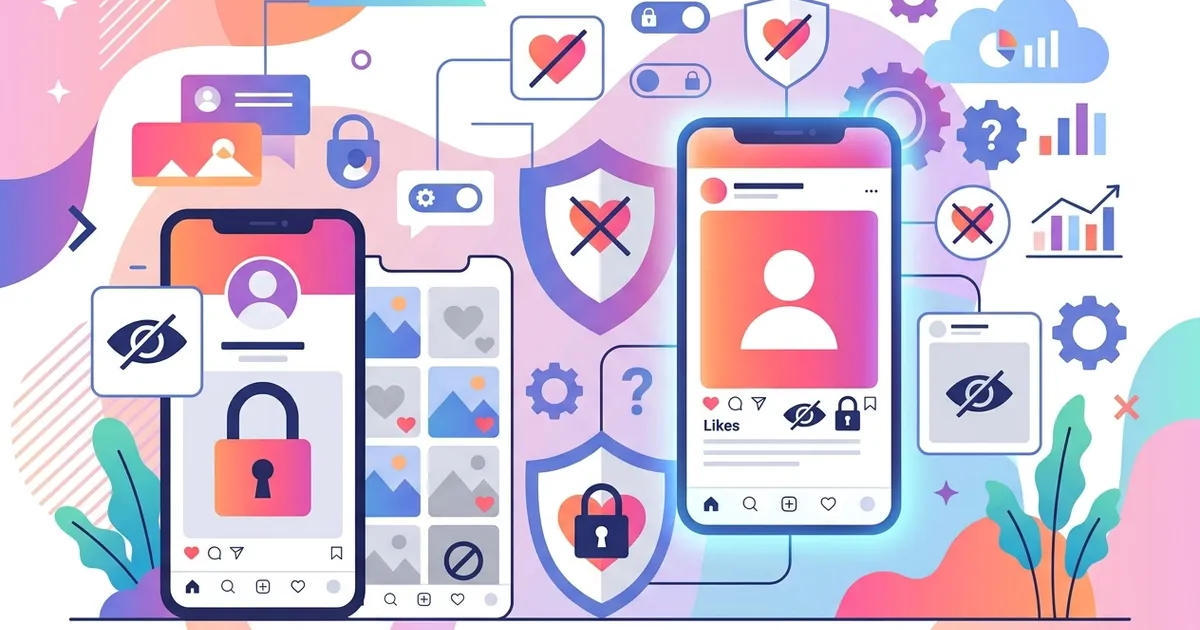
So, can you hide your likes on Instagram? Yes — but the phrase "hide likes" actually covers two separate features that many users confuse. First, you can hide the like count on your own posts and Reels so followers see "Liked by [user] and others" instead of a number. Second, you can hide your liked activity from the Friends tab so mutual followers cannot see which posts you recently liked or commented on.
Both options are built into Instagram's privacy settings and take less than 30 seconds to toggle. Instagram's Hide Like Count feature rolled out globally in May 2021, and the Activity in Friends Tab controls were added in 2024 as part of Meta's broader privacy updates.
In our experience helping creators manage their Instagram presence since 2013, the number-one source of confusion is that "hide likes" means two completely different things — and each requires a different settings path.
Here is the quick breakdown:
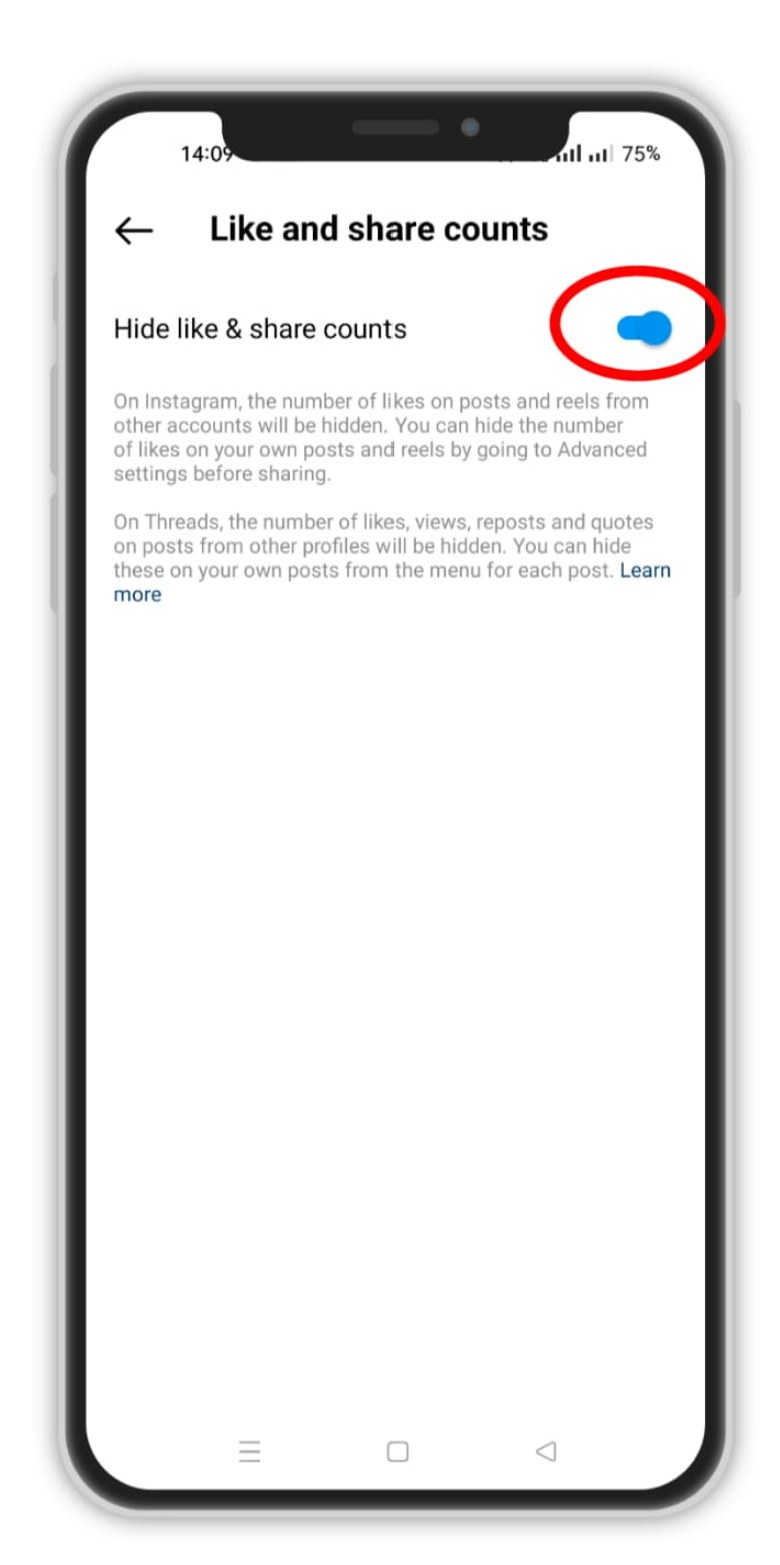
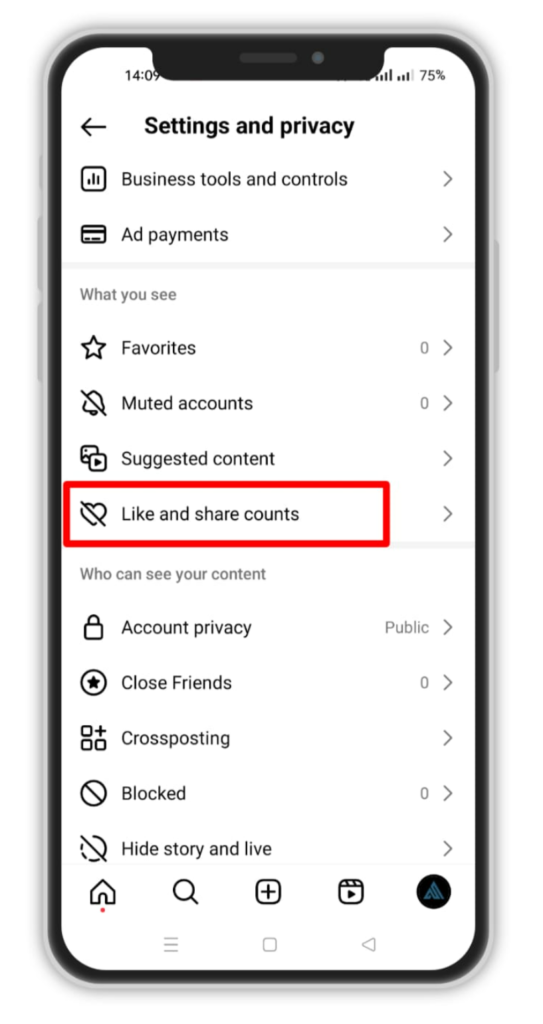
- Hide like count (per-post toggle): Settings path is ... menu on any post or Advanced Settings before posting. Removes the visible number; engagement data stays intact.
- Hide liked activity (Friends tab): Settings path is Settings and privacy > Activity > Activity in Friends Tab > No one. Stops mutual followers from seeing what you liked.
This guide walks through both features with updated 2026 steps, covering posts, Reels, and the Friends tab so you can choose exactly what stays private.
How Do You Hide Like Counts on Your Own Posts?
Hiding the like count on a post is a per-post toggle — you can show numbers on some posts and hide them on others. Instagram provides two paths depending on whether the post is already published.
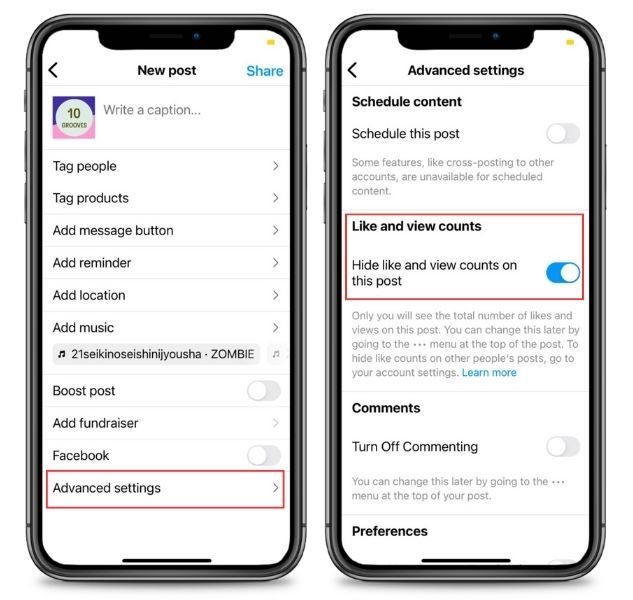
Hide Likes Before Publishing
- Create your post as usual (photo, carousel, or video).
- On the final editing screen, tap Advanced Settings at the bottom.
- Toggle Hide like and view counts to on.
- Share the post. Followers will see "Liked by [username] and others" with no visible number.
According to Instagram Help, this setting applies only to the individual post — it does not carry over to your next upload.
Hide Like Count After Posting
- Open the published post on your profile.
- Tap the three-dot menu (...) in the top-right corner.
- Select Hide like count.
The count disappears immediately for everyone except you. You can still see your own like total by tapping the "Liked by" line beneath the post.
Pro Tip: This toggle works both ways. If you hid likes initially and later want to show the count — tap ... again and select Unhide like count. Useful for creators who hide likes during the first 24 hours to avoid early-metric anxiety, then reveal them once engagement stabilizes.
What Happens After You Hide the Count
The result is the same whether you hide before or after posting: the public number disappears while the actual engagement data stays intact in Instagram's backend. Followers who visit your post see "Liked by [username] and others" — no number, no way to estimate the count without tapping through the liker list manually.
This is a per-post setting, which means you have full flexibility. You can hide your likes on Instagram for a single underperforming post, an entire batch of experimental content, or every upload on your profile. There is no account-wide master switch — each post is independent.
One common question: does hiding the count also hide who liked the post? No. Anyone who can see the post can still tap "and others" and scroll through the full list of likers. The toggle only removes the visible number. If you need to control WHO can interact with your content, that requires a different approach — such as a private account or the Restrict feature (covered in detail below).
Can You Hide Likes on Instagram Reels?
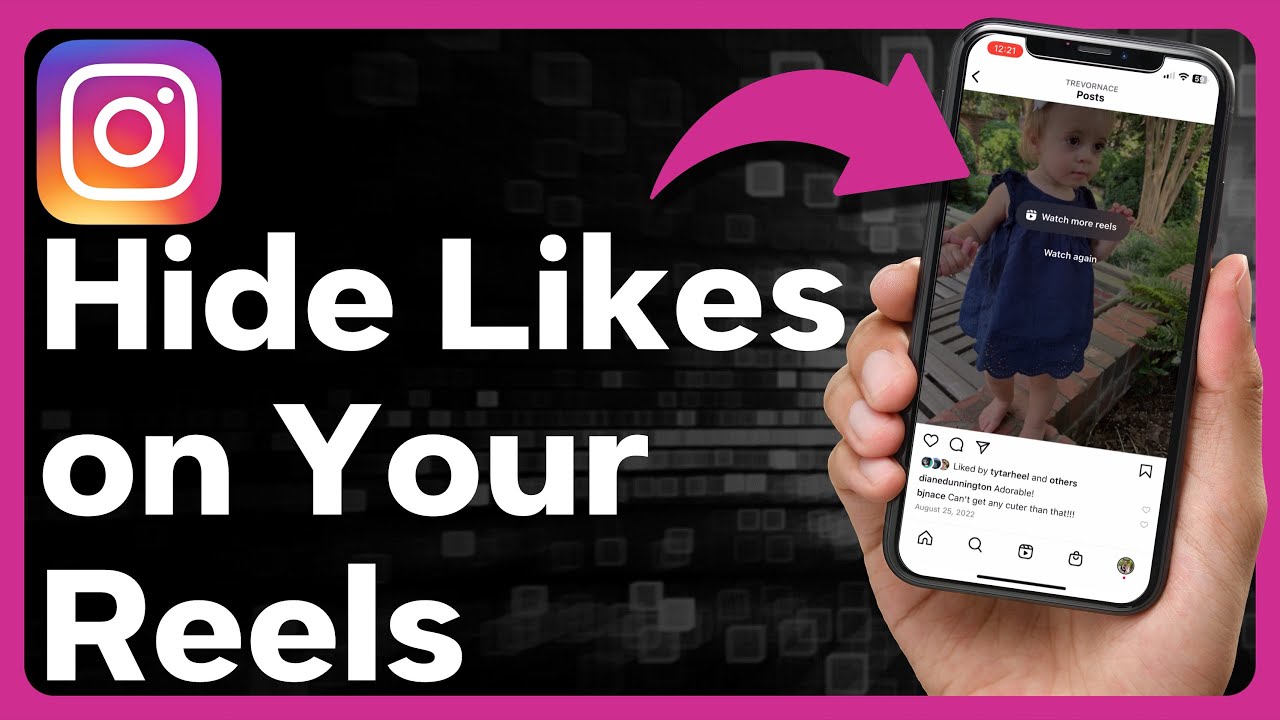
Yes — Reels support the same hide-like-count toggle as regular posts. The steps are nearly identical whether you want to hide likes on a Reel before or after sharing it.
Hiding Likes on an Existing Reel
- Open the Reel from your profile or feed.
- Tap the three-dot menu (...) in the bottom-right corner.
- Select Hide like count.
The like total disappears for all viewers immediately. You still see your own count and full analytics in Instagram Insights.
Hiding Likes Before Sharing a New Reel
- Record or upload your Reel and reach the final editing screen.
- Tap Advanced Settings.
- Toggle Hide like and view counts to on.
- Share the Reel.
Instagram confirms that hiding like and view counts on Reels works identically to standard posts.
Important: Hiding the like count does NOT hide WHO liked your Reel. Anyone who can view the Reel can still tap "and others" to see the full list of people who liked it. The toggle only removes the visible number — the liker list remains public.
This distinction matters for creators who want total privacy. If your goal is to prevent specific people from seeing your Reels entirely, you would need a private account or the Restrict feature rather than the hide-like-count toggle. For most users, though, removing the visible number is enough to shift the focus from metrics to content quality.
Keep in mind that hiding Reel likes also hides the view count — it is the same toggle controlling both numbers. This can be a strategic advantage for creators testing new content formats. Without a visible view count, early performance does not scare away viewers who might skip a Reel that appears underperforming. Some creators use this approach to let Reels gain traction organically before deciding whether to reveal the metrics.
If you also want to prevent your own Reel-liking activity from being visible to mutual followers, that requires a separate setting covered in the Friends tab section below. So when someone asks "can you hide your likes on Instagram Reels?" — the answer is yes for the count, but no for the liker list.
How to Hide What You Liked on Instagram (Friends Tab)
This is the feature most people are actually searching for when they ask how to hide what they liked on Instagram in 2026. The Friends tab — formerly called "Following Activity" — shows your mutual followers a feed of posts you recently liked, commented on, or saved. Many users have no idea this tab exists until a friend mentions seeing their activity.
What the Friends Tab Shows: Instagram shares your recent likes, comments, and saves with people who follow you AND whom you follow back (mutual follows). This curated activity feed appears in the heart icon section of their app. It does not show your activity to non-mutual followers or the general public.
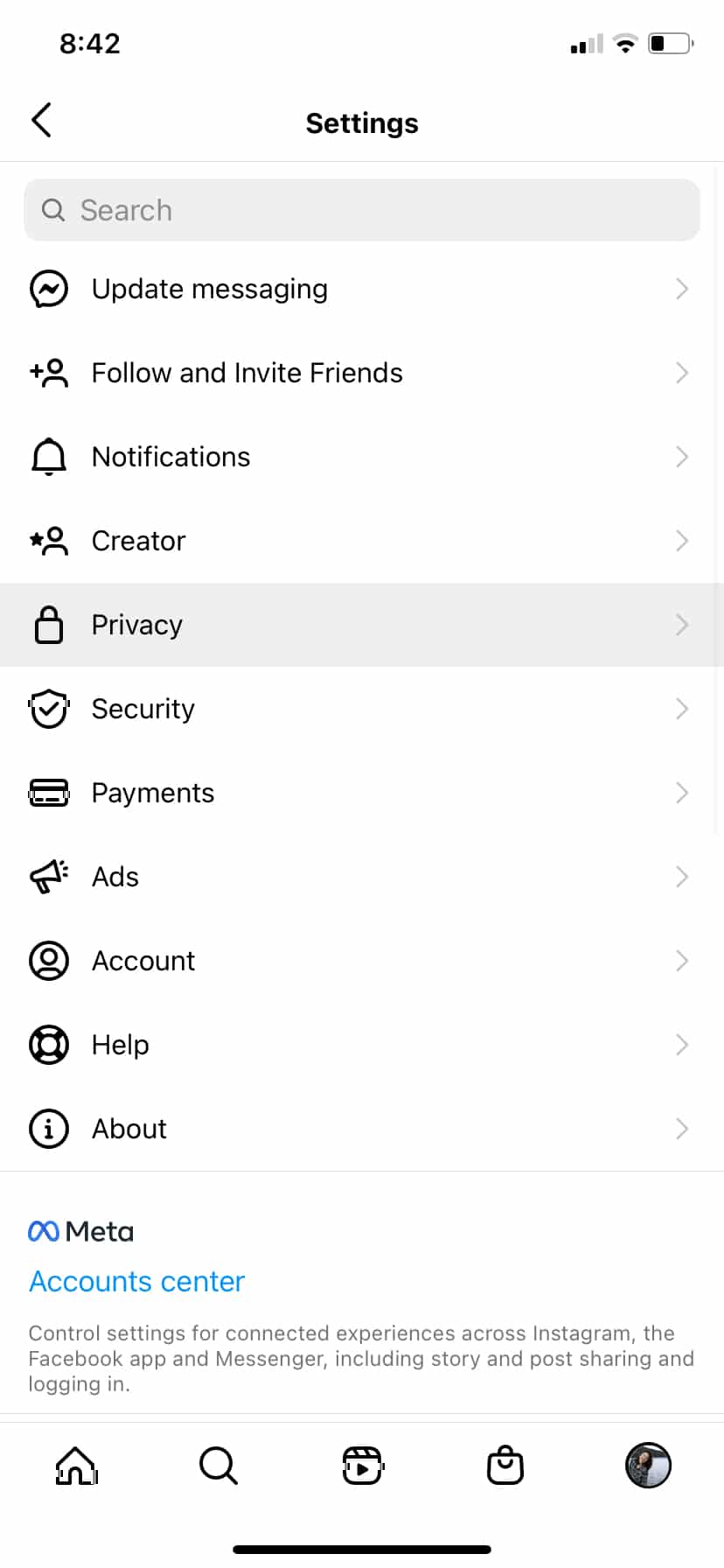
How to Turn Off Activity in Friends Tab
- Open Instagram and go to your Profile.
- Tap the hamburger menu (three lines) in the top-right corner.
- Select Settings and privacy.
- Scroll down and tap Activity.
- Tap Activity in Friends Tab.
- Choose No one.
Once set to "No one," your likes, comments, and saves stop appearing in anyone's Friends tab. The change takes effect immediately and applies to all future activity. According to Mashable, Instagram's Activity in Friends Tab feature launched in 2024 as part of Meta's broader push toward user-controlled privacy settings.
Pro Tip: Save Instead of Like. If you want to bookmark a post without leaving any public trace, tap the Save icon (bookmark) instead of the heart. Saves are completely private — they never appear in the Friends tab, even if you have not disabled the setting. This is useful when you want to keep the Friends tab active for some activity but hide specific interactions.
Why This Instagram Privacy Setting Matters
The Friends tab is the primary reason users bounce from articles about hiding Instagram likes. They don't want to hide the like COUNT on their posts — they want to stop friends from seeing WHAT they liked. Without disabling this setting, every like you tap becomes visible to your mutual followers within minutes.
For Instagram business accounts, the Friends tab can be especially problematic. Engaging with competitor content or liking posts outside your brand's niche becomes visible to your entire mutual-follow network. Turning off the Friends tab activity keeps your browsing habits private while still allowing you to engage freely.
What Happens to Old Activity?
When you disable the Friends tab, Instagram stops displaying your future activity. However, likes and comments you made before changing the setting may still appear briefly in your followers' cached feeds until they refresh. There is no way to retroactively remove past activity entries — the toggle only controls what gets shared going forward.
This is worth knowing because many users change the setting and then panic when a friend says they saw a recent like. In most cases, that activity was cached before the change took effect. Give it 24–48 hours for all caches to clear.
The bottom line: if you want to fully control whether can you hide your likes on Instagram from friends, disable the Friends tab setting AND use Save instead of Like for posts you want to keep completely private. These two steps together cover every visibility scenario related to your liked activity.
Who Can See Your Likes on Instagram?
Your likes on Instagram are visible in four separate ways, and each one has different privacy controls. Understanding the full visibility matrix helps you decide exactly which settings to change.
Instagram removed the old Following Activity tab in 2019, which once showed every like and follow in real time. In 2024, Meta replaced it with the curated Friends tab that only surfaces activity to mutual followers. But that still leaves multiple channels where your likes show up.
Here is the complete breakdown:
| What's Visible | Who Can See It | Can You Hide It? |
|---|---|---|
| Like count on your posts | Anyone viewing the post | Yes — toggle per post via ⋯ menu |
| Liker list (who liked a post) | Anyone who can view the post | No — always visible |
| Your liked activity (Friends tab) | Mutual followers | Yes — Settings → Activity → set to "No one" |
| Your full like history (Your Activity) | Only you | N/A — already private |
The column most users overlook is the liker list. As noted in the table above, this is the one channel you cannot control — your name remains visible to anyone who taps through.
For business accounts, this transparency can actually be useful. Mutual engagement signals between brands and followers build credibility, and understanding who interacts with your content is part of running an effective Instagram business strategy.
Key Insight: Your full like history — every post you have ever liked — is visible only to you under Settings → Your Activity → Interactions → Likes. No one else can access this list.
The practical takeaway: if you are asking can you hide your likes on Instagram for maximum privacy, disable the Friends tab activity (S4 above) and hide like counts on individual posts. You cannot prevent your name from appearing on liker lists, but you can control every other visibility channel.
Can You Hide Likes from a Specific Person?
No — Instagram does not offer any way to hide your likes from one specific person while keeping them visible to everyone else. All like-visibility controls are global: they apply equally to every viewer or follower, with no per-user targeting.
This is a deliberate design choice. Instagram's privacy settings like hide like count and Activity in Friends Tab are account-wide toggles, not per-relationship filters. There is no "hide from this person" option anywhere in the settings.
However, four practical alternatives let you limit what a specific person sees:
- Restrict the account: The most discreet option. When you restrict someone, they can still see your posts and likes, but their comments on your posts become invisible to everyone except themselves. They also cannot see when you are online or when you have read their messages. This works well when you want to quietly limit someone without confrontation.
- Switch to a private account: Approve who follows you. Once your account is private, only approved followers see your posts, like counts, and liker lists. Anyone you do not approve is fully locked out.
- Block the account: The most definitive option. Blocking removes all mutual visibility — the person cannot see your profile, posts, likes, or stories at all. They are also removed from your followers list.
- Use Close Friends for Stories: If your concern is specifically about Story content, add only trusted people to your Close Friends list and share sensitive Stories exclusively there.
Pro Tip: Restrict is the most discreet option — the restricted person is never notified that anything changed, and your profile appears completely normal to them. It is also the only tool that works without unfollowing or blocking.
For broader Instagram privacy features — including message controls and screenshot notifications — check out what happens when someone can you see who unsent a message on Instagram.
Each alternative addresses a different level of privacy concern. Restrict handles casual discomfort. Private mode works for account-wide control. Blocking solves harassment. Choose based on the severity of the situation, not as a blanket solution.
So while you can you hide your likes on Instagram from the general public, you cannot selectively target one specific person — only these account-level tools give you per-person control.
Does Hiding Likes Affect the Instagram Algorithm?
No — hiding like counts has zero effect on how the Instagram algorithm ranks or distributes your content. The toggle is purely a display change. Behind the scenes, every like, save, comment, share, and second of watch time is still recorded and processed exactly the same way.
As the official documentation confirms, hiding like and view counts only removes the visible number from your post. The algorithm continues to use all engagement metrics — including likes — to determine reach, Explore placement, and Reels recommendations. Nothing changes about how your content performs.
This matters because a persistent myth suggests that hiding likes "confuses" the algorithm or lowers reach. It does not. Instagram's ranking systems operate on raw engagement data, not on what is displayed to viewers. A post with 5,000 hidden likes and a post with 5,000 visible likes receive identical algorithmic treatment.
When Hiding Likes Makes Strategic Sense
We've found that creators who strategically toggle like visibility during content experiments tend to post more consistently — freed from early-metric anxiety. Some practical scenarios:
- A/B testing content styles: Hide counts on experimental posts so early numbers do not bias your perception of what works. Review actual performance in Insights later.
- New account growth: Low like counts can create negative social proof. Hiding them removes that barrier while you build momentum.
- Mental health: Removing the visible scoreboard encourages posting for creative reasons rather than validation.
Not every creator agrees with this approach. Creator @05chrs (27K followers, 8.4K average views) has publicly discussed choosing to keep likes visible as a transparency philosophy — arguing that showing real numbers builds authentic connection with their audience. Both strategies are valid, depending on your goals.
If your account struggles with low visible engagement even after consistent posting, the issue may not be about hiding likes at all — it could be a deeper reach problem. Understanding why your Instagram account looks dead can help diagnose whether you need a strategy shift.
For creators looking to boost your Instagram engagement, combining strong content with strategic visibility controls gives you the most flexibility.
Key Insight: The algorithm sees everything regardless of your display settings. Use the hide toggle as a creative tool, not as a ranking strategy.
All answers above are based on official Instagram Help Center documentation, verified for accuracy as of March 2026. If you are still wondering whether can you hide your likes on Instagram — the short answer is yes, using the methods covered throughout this guide.