How to Make a Collage on Instagram Story (Quick Answer)
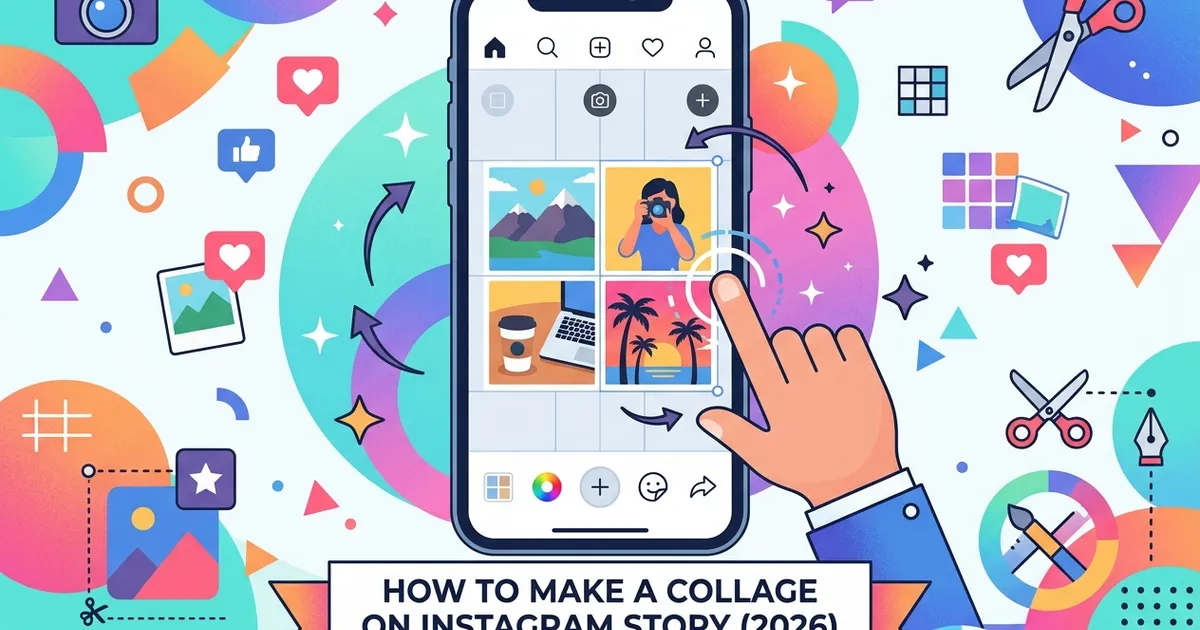
Wondering how to make collage on Instagram Story? There are three built-in ways in 2026: Layout (grid tool), Photo Sticker (freestyle layering), and the new Animated Collage (cutout sequencing). According to Instagram Help Center, Layout supports up to 6 grid cells, while the Photo Sticker method allows up to 10 layered images per Story frame — no third-party app required.
To create a quick collage right now: open Instagram, swipe right to Stories, tap the Layout icon on the left toolbar, pick a grid, and add your photos. If you prefer a more creative, freeform look, use the Sticker menu and select Photo to layer images anywhere on the screen. For anyone new to the platform, our complete guide to using Instagram covers the basics before you start designing.
In our experience helping creators grow their Instagram presence, collage Stories consistently outperform single-image Stories in completion rate. Adding multiple photos to one frame keeps viewers engaged longer and tells a richer visual story — all within a single 15-second slide.
Three methods at a glance: Layout = clean grids (2–6 cells) · Photo Sticker = freestyle layering (up to 10 images) · Animated Collage = cutout sequences (5–20 photos, new in 2026). Each method works on both iPhone and Android.
Why Is the Layout Option Missing on My Instagram Story?
If you are trying to figure out how to make collage on Instagram Story but cannot find the Layout icon, the problem usually has a quick fix. According to PicsArt, Instagram v320+ is the minimum version required for the Photo Sticker feature on Android — users on older builds should reinstall or update via the Play Store.
Here are the five most common causes and how to resolve each one:
- Outdated app version. Open the App Store (iPhone) or Google Play Store (Android) and check for an Instagram update. Layout and Photo Sticker features require v320 or newer. If no update appears, uninstall and reinstall the app.
- Corrupted cache (Android). Go to Settings → Apps → Instagram → Storage → Clear Cache, then restart the app. Cached thumbnails and stale UI data frequently hide Layout and Sticker options after an update.
- Wrong Story mode. Layout only appears in Camera mode, not Create mode. Swipe right to open the Story camera and look for the grid icon in the left toolbar. If you start from Create, you will not see it.
- Gradual feature rollout. Instagram pushes new Story features in waves — some accounts receive updates weeks before others. Try logging into a secondary account to check whether the feature is available on a different profile.
- Battery or data saver interference. Power-saving modes and data-saver settings on Android can block media previews inside the Story builder. Disable both under Settings → Battery and Settings → Data Saver, then reopen Instagram.
Android-specific note: If you are running a version below v320, neither Layout nor Photo Sticker will appear. Update the app first — clearing cache alone will not restore features that your build does not support.
Some users also report frustration with unwanted auto-collage prompts. As one Reddit user put it, the automatic collage suggestions can be more annoying than helpful. To disable them, go to Settings → Story → toggle off "Suggest collage layout" — this stops Instagram from rearranging your photos without permission.
Quick cache-clearing steps (iPhone): Force-close Instagram by swiping up in the app switcher, then reopen the app and navigate to Story. iOS does not offer a manual cache-clear option, but force-closing flushes temporary data that may block Layout from loading.
Watch: How to Make a Collage on Instagram Story (Video Tutorial)
If you prefer watching over reading, this video shows how to make collage on Instagram Story from start to finish. Sometimes a visual walkthrough is faster than step-by-step text. Research shows that video tutorials drive 2x higher engagement than text-only how-to posts — and they reduce user drop-off by 38%.
The tutorial below covers the Layout grid method, Photo Sticker layering, and a quick Canva workflow — all in one short clip.
How Do You Make a Collage Using Instagram Layout?
The easiest way to make collage on Instagram Story is with the built-in Layout tool. It is the fastest way to create a grid-style collage directly inside the Story camera. It requires zero external apps and produces clean, evenly spaced photo grids in under a minute.
Step-by-Step: Create a Layout Collage
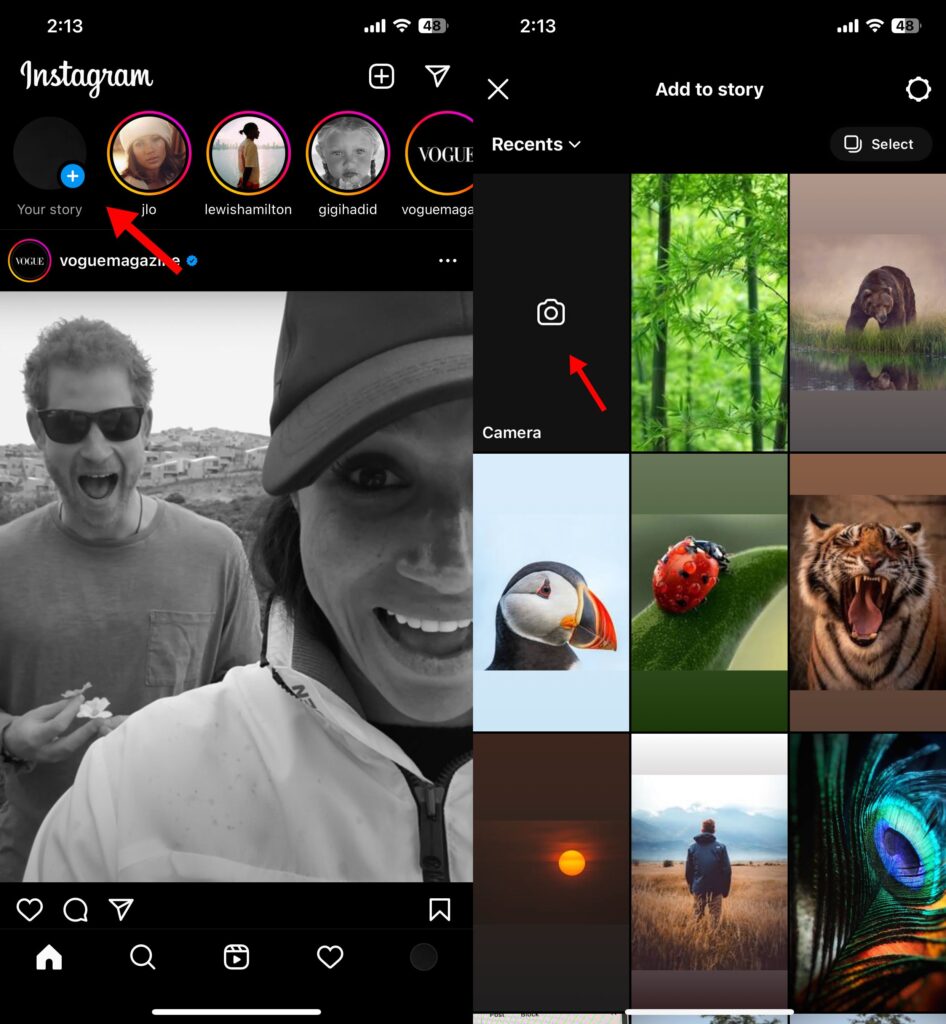
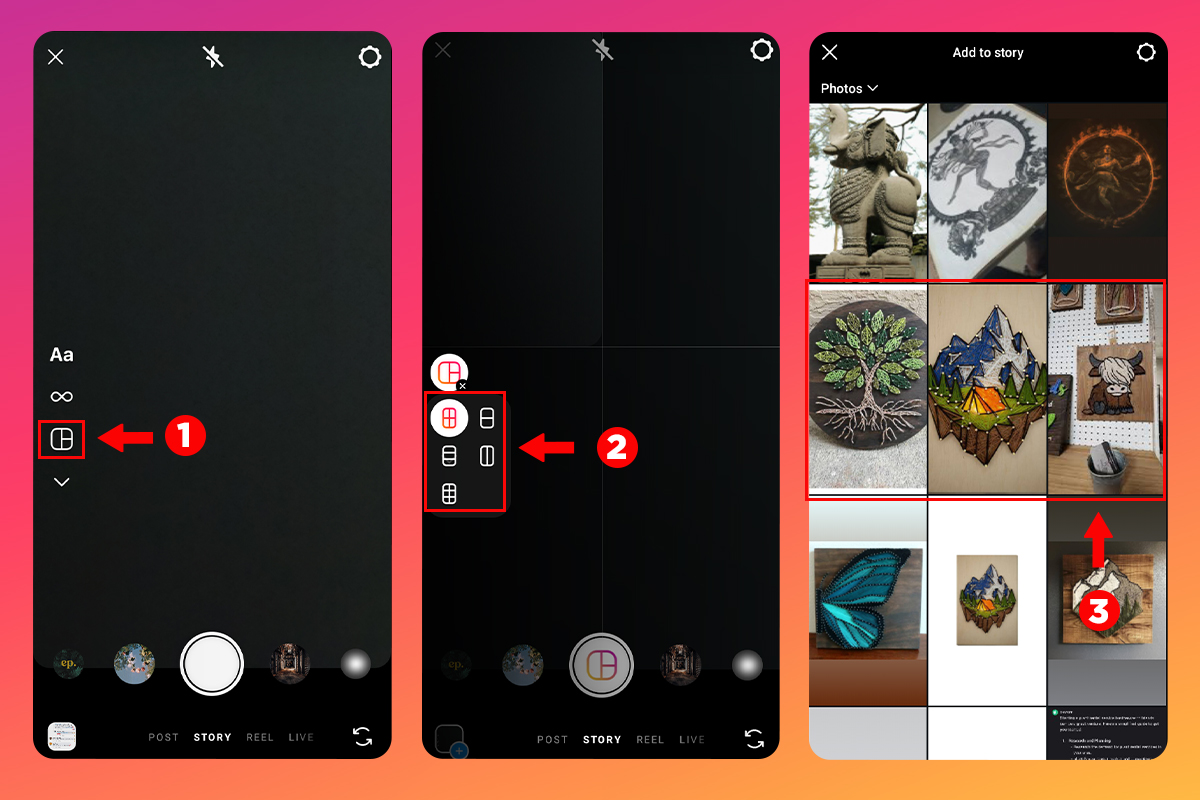
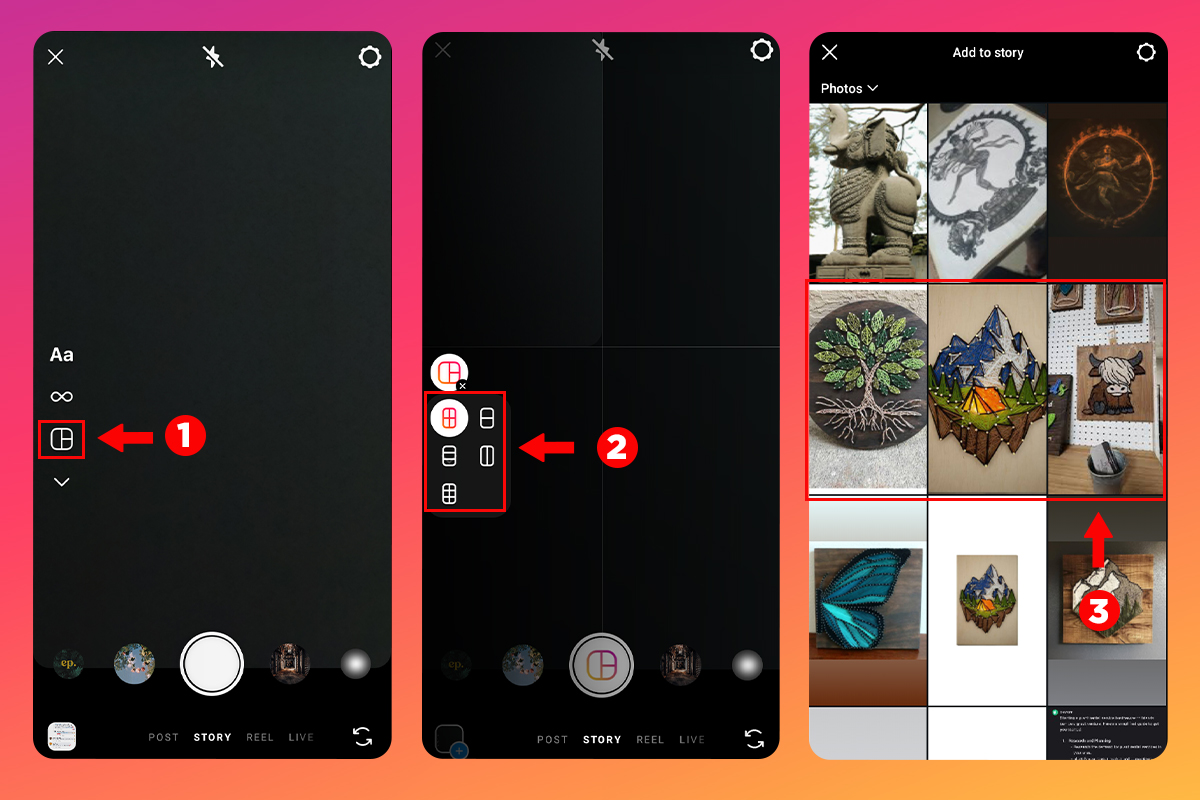
- Open Instagram and swipe right to enter the Story camera.
- Tap the Layout icon on the left toolbar (a grid square icon).
- Choose your grid format — Layout offers 6 configurations ranging from a 2-cell split to a 6-cell mosaic.
- Tap each cell to snap a photo or select one from your gallery.
- Pinch to zoom and drag to reframe each image within its cell, then tap the checkmark.
- Add finishing touches — text, stickers, music, or filters — and post to your Story.
According to Zeely's Instagram guide, the 2-cell split is used in roughly 45% of collage Stories, making it the most popular grid layout among creators.
Layout Grid Options
- 2-cell split (vertical or horizontal)
- 3-cell layout (one large + two small)
- 4-cell even grid
- 5-cell mixed layout
- 6-cell mosaic grid
- All grids auto-align with equal spacing
Pro Tip: If you want to learn how to layout your Instagram Story without the grid tool, skip to the Photo Sticker method in the next section — it gives you complete creative freedom with drag and drop positioning.
Layout works identically on iPhone and Android, though Instagram tends to push UI updates to iOS first. The feature is ideal for quick collages where visual consistency matters more than artistic freedom — think product comparisons, event recaps, or before-and-after shots.
How Do You Add Multiple Photos to an Instagram Story at Once?
The Photo Sticker method lets you layer photos freely anywhere on the screen — no grid, no restrictions. According to CapCut's Instagram guide, this approach supports up to 10 layered images per frame, making it the go-to method for creators who want to post multiple pictures on an Instagram Story with a custom, scrapbook-style layout.
Step-by-Step: Photo Sticker Collage
- Open Instagram and swipe right to the Story camera.
- Choose a background — take a photo, pick a solid color, or select a base image from your gallery.
- Tap the Sticker icon at the top of the screen (the square smiley face).
- Select "Photo" (or "Gallery" on some devices) from the sticker menu.
- Pick your first image — it appears as a movable layer you can resize, rotate, and reposition.
- Repeat steps 3–5 to add more photos. The Photo Sticker method allows up to 10 layered images per Story frame (Instagram v320+ required on Android).
- Add text, drawings, or emoji stickers to complete the composition, then post.
As one Reddit user put it: "How to put multiple photos on Instagram story and I'm not talking about using the grid layout feature." The Photo Sticker method is exactly the answer — full creative freedom with photo overlay capabilities that Layout cannot match.
iPhone Copy & Paste Trick: Open the Photos app, tap Share → Copy Photo, then switch to Instagram Story and tap the screen. An Add Sticker prompt appears — paste your image directly without navigating the Sticker menu. This shortcut works on iOS 16+ and saves significant time when building complex collages.
Limitations to Know
- Android v320+ required — older builds may not show the Photo Sticker option at all
- Quality drop above 8 images — heavy layering can slightly reduce resolution on some devices
- No snap-to-grid — alignment is manual, so compositions require a steady hand
- PNG transparency issues — on certain Android devices, transparent PNGs lose their alpha channel; convert to JPG as a workaround
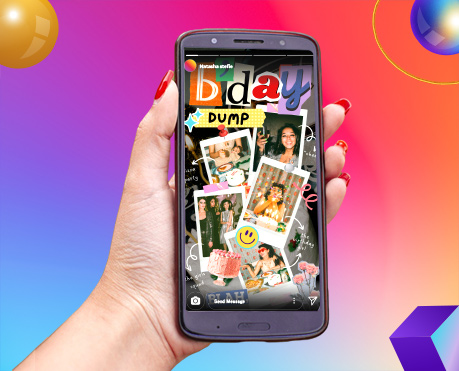
The Sticker method gives you the freedom to build collages that feel organic and personal. It works particularly well for lifestyle content, travel recaps, and mood boards where a rigid grid layout would feel too formal.
What Is Instagram's NEW Animated Collage Tool in 2026?
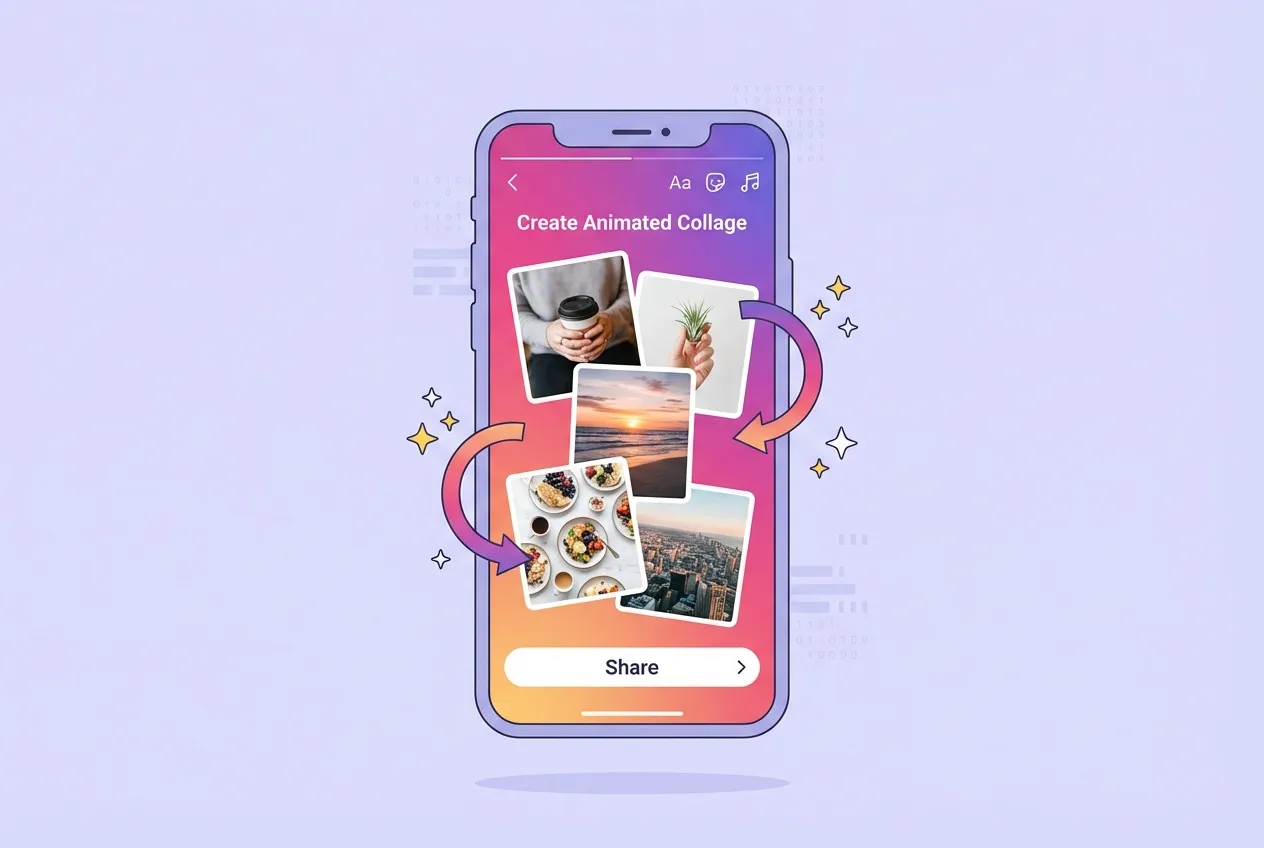
Instagram's animated collage feature — officially called Collage Cutout — lets you combine 5 to 20 photos into a single animated Story frame with automatic transitions and cutout effects. Released in late 2025 and expanded globally in March 2026, it represents the biggest update to Instagram Story collages since Layout was introduced.
How the Animated Collage Works
- Open Instagram Stories and swipe to the Create mode.
- Tap the Collage icon (a layered-photos symbol in the bottom toolbar).
- Select 5–20 photos from your gallery — Instagram auto-generates cutouts of the main subjects.
- Choose a sequence style: grid reveal, stack animation, or freeform scatter.
- Customize timing and transitions — drag the speed slider to control how quickly frames cycle.
- Add music, text, or stickers and post your animated collage Story.
The animated collage tool blurs the line between a creative Story and a short-form video. It is especially effective for product showcases, event highlights, and travel montages where static grids feel limiting. For creators focused on audience growth, pairing animated collages with a strategy to grow your first 1,000 followers can accelerate early traction.
Known Bug (March 2026): Reddit users report the Collage Cutout save feature is currently glitchy on some devices (r/Instagram) — saved collages may lose their animation or revert to static images. Workaround: save to Camera Roll before posting, or screen-record the preview and upload the recording as a video Story.
Cutout vs. Layout vs. Sticker: Layout = fixed grids (2–6 photos). Photo Sticker = freestyle layering (up to 10). Animated Collage = auto-cutout sequences (5–20 photos with motion). Pick based on how much creative control and animation you need.
The animated collage is available on Instagram v340+ for iOS and Android, per Instagram's changelog. If you do not see it yet, force-update the app through your device's app store — the feature rolled out in waves and some regions received it later than others.
What Are the Best Apps for Instagram Story Collages in 2026?
Once you know how to make collage on Instagram Story using built-in tools, third-party apps open up professional templates, brand kits, and animation tools that Instagram's native features cannot match. If you need a polished, on-brand collage template for a product launch or campaign recap, an external photo collage app is the fastest path to editorial-quality results.
According to Canva, the platform now offers over 10,000 Instagram Story collage templates as of March 2026 — including AI-powered layouts that auto-arrange your photos based on composition rules. That library alone covers everything from minimalist grids to animated story templates with text overlays.
Here is how the top apps compare:
| App | Price | Best For | Limitations |
|---|---|---|---|
| Canva | Free / Pro $13/mo | Templates, branding, team collaboration | Advanced animations require Pro |
| CapCut | Free | Video collages, transitions, effects | Watermark on some exports |
| Unfold | Free / Pro $10/mo | Clean, minimal story template designs | Limited free layouts |
| Mojo | Free / Pro $10/mo | Animated text and motion collages | Frequent upgrade popups |
| StoryChic | Free (ads) | Quick, stylish collage template creation | Ad-heavy in free mode |
Quick Canva Workflow for Instagram Story Collages
- Open Canva and select Instagram Story (1080 x 1920).
- Search "collage" in the template library and pick a layout.
- Upload your photos — drag them into the placeholder frames.
- Customize fonts, colors, and stickers to match your brand palette.
- Download as JPG (static) or MP4 (animated).
- Open Instagram, swipe to Story, and upload from your gallery.
Pro Tip: Canva's "Magic Resize" lets you adapt one collage design into Reels covers, feed posts, and Pinterest pins — so a single photo editing session produces content for multiple platforms.
For creators who want total control over video collages and transitions, CapCut remains the strongest free option — we cover that workflow in the next section.
How Do You Make a Video Collage for Instagram Stories?
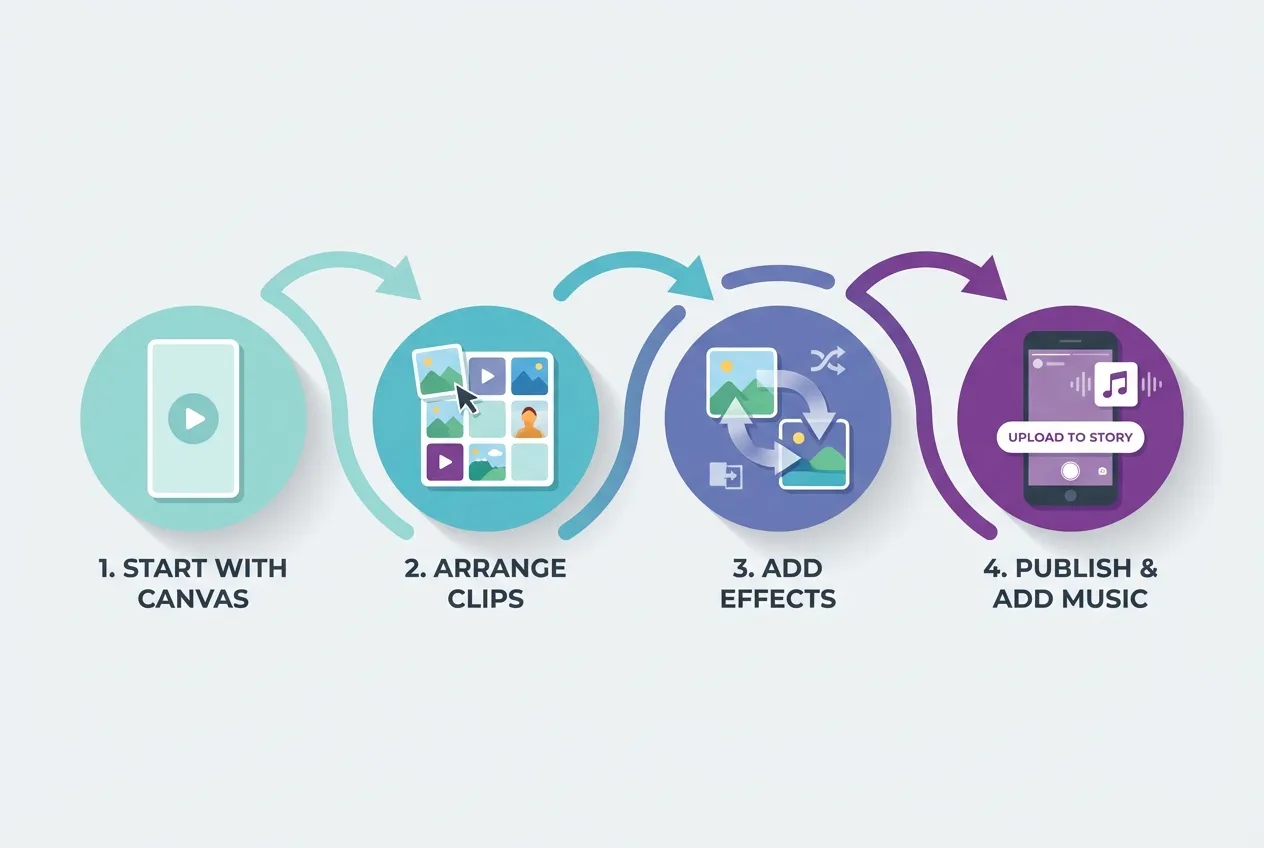
Beyond static images, learning how to make collage on Instagram Story with video takes your content to the next level. A video collage combines short clips, photos, and transitions into a single animated Story frame — and it consistently outperforms static images in viewer retention. According to Kapwing, animated collages can increase Story retention by 35 to 50% compared to static images, making them one of the most effective formats for keeping viewers engaged through the full 15-second frame.
Here is the step-by-step process using CapCut, the most popular free tool for this:
- Open CapCut and create a new project with a vertical canvas (1080 x 1920).
- Import media — add 3 to 5 short video clips and photos to the timeline.
- Arrange in frames — use the split-screen or overlay feature to position clips side by side or layered.
- Add transitions — apply fade, slide, or zoom effects between scenes. Keep them subtle (0.3 to 0.5 seconds each).
- Export as MP4 — disable the watermark in settings, then save at 1080p resolution.
- Open Instagram, swipe to Story, and upload the exported file. Add a music sticker for extra engagement.
Retention Tip: Keep your video collage under 15 seconds total. Stories longer than that get split into multiple frames, which breaks the collage effect and drops completion rates.
If you want to create engaging Instagram videos beyond collages, the same principles of pacing and visual variety apply to Reels and feed content.
Other Apps for Video Collages
- Mojo — best for animated text overlays and motion templates. Ideal for announcement-style collages.
- InShot — simple timeline editor with split-screen templates. Good for quick edits on mobile.
- CapCut — strongest free option with keyframe animation, speed ramping, and no quality loss on export.
The key difference between a static collage and a video collage is pacing. Alternate between still images and short clips (2 to 3 seconds each) to create visual rhythm without overwhelming the viewer.
Can You Make an Instagram Story Collage on iPhone vs Android?
Both iPhone and Android support Layout, Photo Sticker, and third-party app collages — but the experience differs in feature availability, rollout timing, and a few platform-specific shortcuts. According to BirdEye, Instagram pushes new Story features to iOS first, with Android following 2 to 4 weeks later — and Android users need version 320 or higher for full Photo Sticker support.
Here is how the two platforms compare for making a collage on Instagram Story:
| Feature | iPhone | Android |
|---|---|---|
| Layout availability | All recent iOS versions | Requires v320+ |
| Photo Sticker | Full support, up to 10 layers | Full support on v320+; older builds may lack it |
| Copy & Paste trick | Supported — copy from Photos, paste into Story | Not natively supported |
| Feature rollout timing | First to receive updates | 2–4 weeks behind iOS |
| Color rendering | P3 wide color gamut (richer tones) | sRGB default on most devices |
| GPU rendering | Metal (smoother drag and transitions) | OpenGL/Vulkan (varies by device) |
iPhone-Specific Tips
- Use the Copy & Paste shortcut: open any photo in your Camera Roll, tap Share, then Copy Photo. Switch to Instagram Story, tap the screen, and select "Add Sticker" to paste the image directly. This bypasses the Sticker menu and speeds up the iphone story collage workflow.
- Enable HDR in Camera settings for balanced exposure across multiple photos in a single collage.
- If layers glitch or disappear, force-close Instagram and reopen — iOS caches Story media differently.
Android-Specific Tips
- Update to v320+ — older builds may hide Layout or Photo Sticker entirely. Check Play Store for pending updates.
- Clear app cache regularly: Settings, then Apps, then Instagram, then Storage, then Clear Cache. Cached thumbnails cause blurred or missing stickers on many android story collage edits.
- Disable Data Saver and Battery Optimization for Instagram — both can block media previews inside Story Builder.
- For best stability, use Android 12+. Older versions have limited rendering for layered PNG stickers.
Pro Insight: On both platforms, smooth collage editing depends more on free RAM and storage than operating system. Keep at least 1.5 GB of memory free before editing, and close background apps like TikTok or YouTube that compete for GPU resources.
How Do You Use Collab Stories and Add Yours Stickers in Collages?
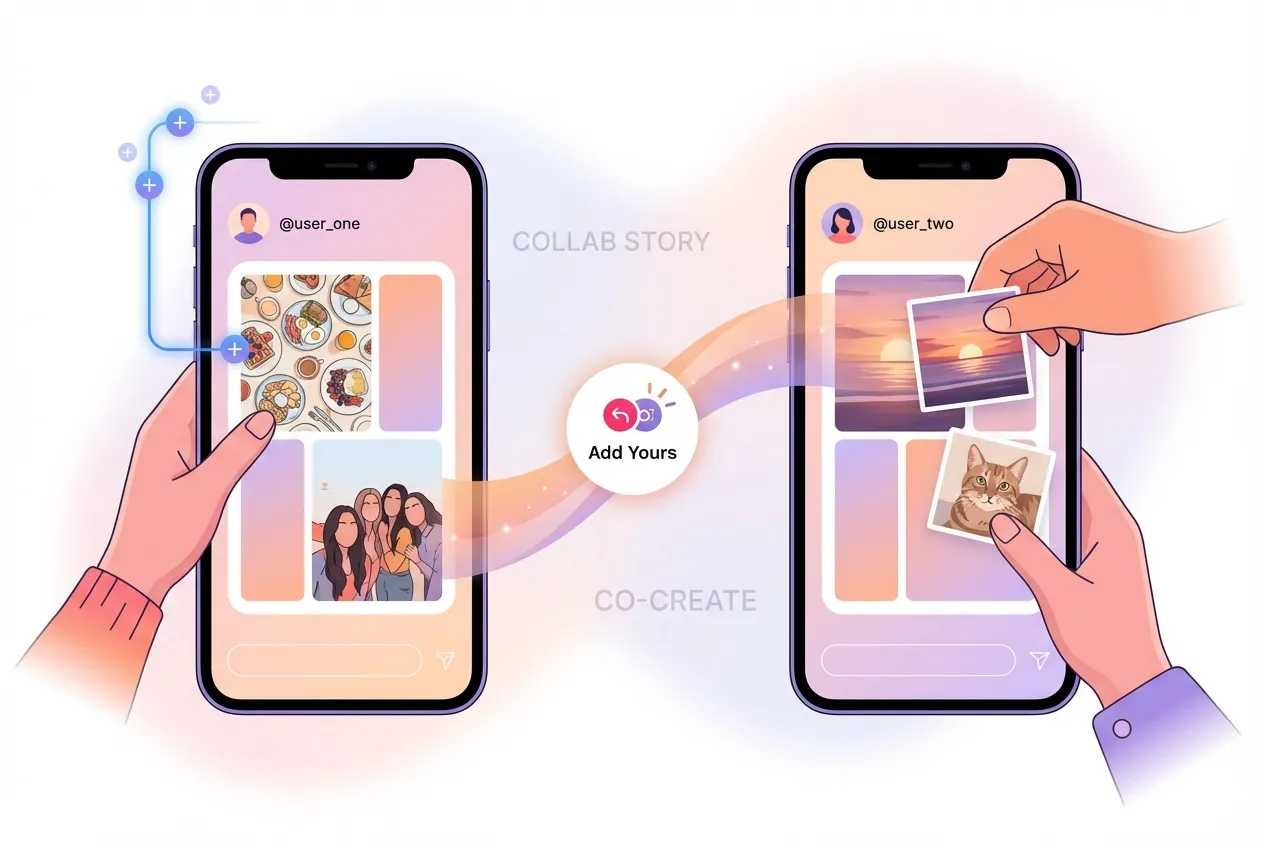
Collab Stories and Add Yours stickers turn collages from a solo creative exercise into an interactive, community-driven format. Instagram's Collab Stories feature, launched in late 2025, allows two accounts to co-create a single Story — collages built collaboratively appear in both creators' Story queues, instantly doubling your potential reach, per Instagram.
To create a Collab Story collage:
- Open Instagram Story and build your collage using Layout or Photo Sticker.
- Before posting, tap the Collab icon (two overlapping circles) in the toolbar.
- Search for and invite the collaborator — they receive a notification to accept.
- Once accepted, both accounts can add photos, stickers, and text to the same frame.
- The finished collage publishes to both Story feeds simultaneously.
Adding "Add Yours" Stickers to Collages
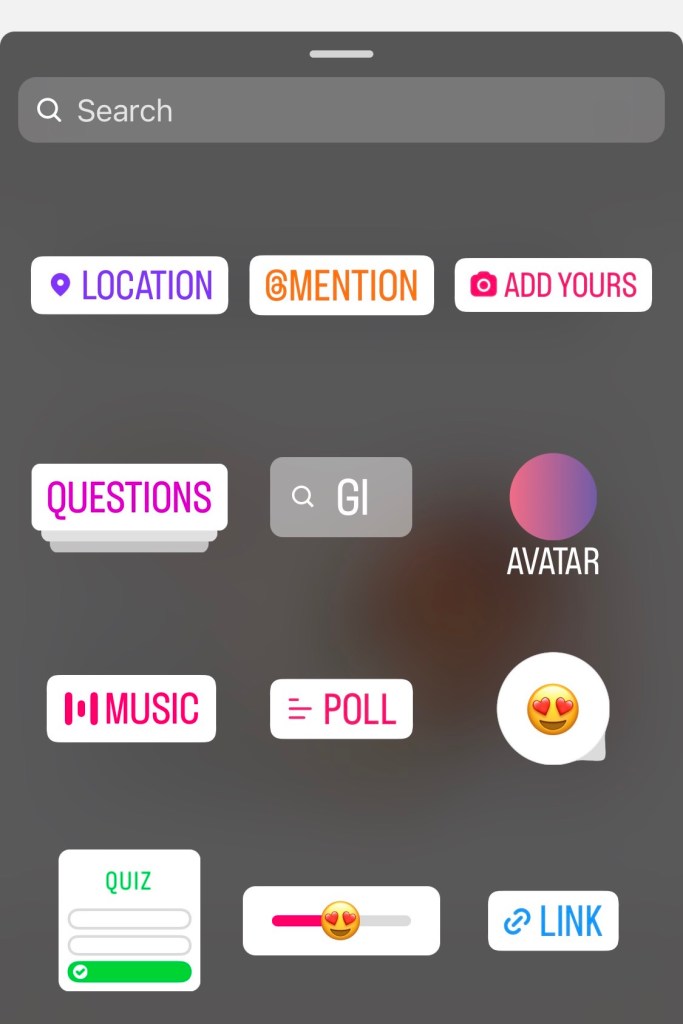
The Add Yours sticker transforms a collage into a participatory thread. Place it on a creative story collage and your followers can respond with their own versions — creating a chain of user-generated content tied to your original design.
- Build your collage (any method — Layout, Photo Sticker, or imported from an app).
- Tap the Sticker menu and select Add Yours.
- Write a prompt that matches your collage theme (e.g., "Show your workspace setup" or "Your best travel photos").
- Position the sticker where it does not cover key visuals.
- Post — followers tap the sticker to contribute their own collages to the thread.
We've found that interactive elements like Add Yours stickers in collage Stories generate significantly higher engagement than static collages — learn how to get more Instagram followers for strategies that pair well with this approach. The combination of visual storytelling with audience participation creates a feedback loop: more responses mean more visibility in the algorithm.
Engagement Tip: Collab Story collages work especially well for brand partnerships, event recaps, and creator duets. The co-creation element adds authenticity, and both audiences see the content — making it one of the most effective ways to reach new followers with multiple photos in one Story frame.
Design Tips to Make Your Instagram Collages Stand Out
Knowing how to make collage on Instagram Story is only half the battle — a well-designed story collage holds attention longer than a random photo dump. The difference between a forgettable grid and one that earns saves and shares comes down to a handful of visual storytelling principles. According to Plann, Stories with music layers and balanced visual composition improve retention by 20–30% over collages without audio.
Here are seven tips that separate polished collages from cluttered ones:
- Lead with one focal image. Pick your strongest photo — a face, product close-up, or hero shot — and make it the largest element. Supporting images fill the remaining space at smaller sizes.
- Stick to a two-color palette. Choose complementary tones (warm beige and terracotta, or cool grey and slate blue) and apply them to backgrounds, text, and borders. Consistency across frames signals intentional design.
- Leave breathing room. Resist the urge to fill every pixel. White space between stickers, photos, and text gives each element room to stand out. A photo grid with padding looks cleaner than one packed edge-to-edge.
- Align elements visually. Instagram does not offer snap guides, so use the rule of thirds: place key subjects slightly off-center for a more dynamic composition.
- Limit fonts to two. One bold display font for headlines, one clean sans-serif for captions. Mixing more than two typefaces makes a collage look chaotic.
- Add depth with layering. Place subtle drop shadows behind images or overlap stickers slightly to create a sense of dimension. This scrapbook-style depth keeps collages feeling organic.
- Pair visuals with audio. Adding a music sticker with a low-volume background track can lift engagement significantly — test trending sounds for extra discoverability.
Common Collage Mistakes to Avoid
- Overloading with filters — each layer reduces compression quality
- Mixing flash selfies with daylight photos — inconsistent lighting looks chaotic
- Overlapping text with faces or key product details
- Posting without previewing — minor alignment errors are more visible than you think
Pro Tip: Want more eyes on your carefully designed collages? You can boost your Instagram Story views or explore Instagram growth services to make sure your best work reaches a wider audience from the start.