Quick Answer: To delete or deactivate your Instagram account in 2026, open the app, go to Settings and Privacy > Accounts Center > Personal Details > Account Ownership and Control > Deactivation or Deletion. Choose Delete Account for permanent removal (you have 30 days to change your mind) or Deactivate Account to hide your profile temporarily. Log back in at any time to reactivate a deactivated account.
Ready to Leave Instagram? Read This First
Searching for how to delete or deactivate Instagram account? You are far from alone. Every year, millions of users step back from the platform for reasons ranging from data privacy concerns to mental health and simple digital fatigue. Whether you want a permanent exit or just a temporary break, the process has changed since Instagram moved most account controls into Meta's Accounts Center.
This guide walks you through every option available in 2026. You will learn the exact steps to permanently delete your Instagram account on iPhone, Android, and desktop, as well as how to temporarily deactivate it if you are not ready to commit. Beyond the basics, we cover territory most guides skip: how to download your data before leaving, how to recover a deleted account during the grace period, whether you can retrieve lost messages or posts, and practical privacy alternatives that might eliminate the need to leave at all.
Every instruction reflects the current Accounts Center interface as of 2026. If you have tried following outdated tutorials that point to settings pages that no longer exist, this is the updated guide you need. Below you will find the current steps for how to delete or deactivate Instagram account access using Meta's Accounts Center.
Delete vs. Deactivate: What You Need to Know
Understanding how to delete or deactivate Instagram account access starts with knowing the difference between these two options. The choices sound similar, but the outcomes are fundamentally different.
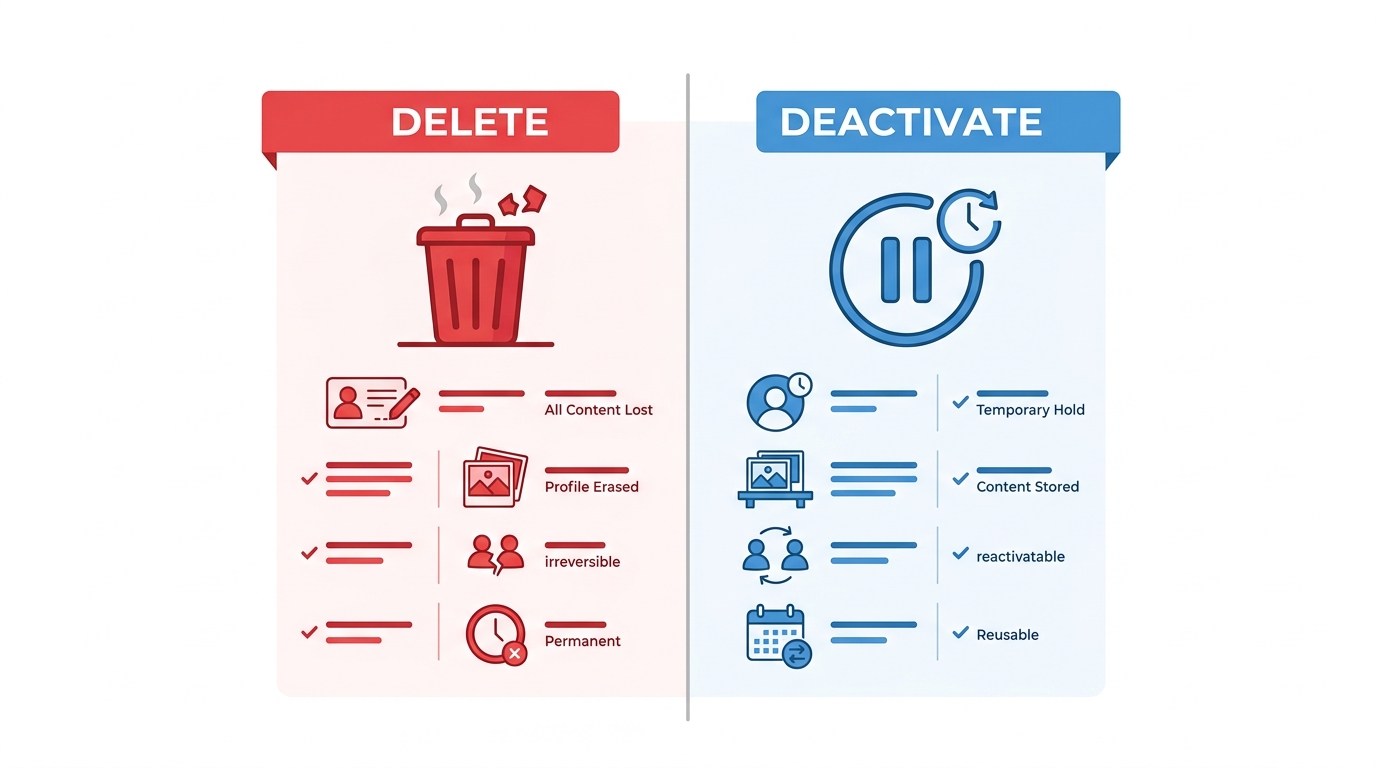
| Factor | Delete Account | Deactivate Account |
|---|---|---|
| Permanence | Permanent after 30-day grace period | Temporary — reversed by logging in |
| Profile visibility | Hidden immediately, then erased | Hidden from search and public view |
| Your content | Posts, stories, reels permanently removed | All content preserved, restored on reactivation |
| Direct messages | Messages you sent may persist on recipients' side | Messages remain; recipients can still see them |
| Recovery | Only during the 30-day window | Anytime — just log in |
| Best for | Leaving Instagram permanently | Digital detox or temporary break |
Deletion is designed to be irreversible. Once you confirm, Instagram hides your account immediately and begins a 30-day countdown. If you log back in during those 30 days, the deletion is cancelled. After the window closes, Meta permanently removes your profile, photos, videos, comments, likes, and follower lists from their live systems. Some data may be retained in backups per Meta's data retention policies, but you will not be able to access or restore it.
Deactivation is the reversible option. Your profile disappears from search results and your content becomes invisible, but nothing is deleted. The moment you log back in — whether that is a week or a year later — everything is restored exactly as you left it.
Not sure which to choose? Start with deactivation. You can always upgrade to full deletion later, but you cannot undo a permanent delete once the grace period ends.
How to Delete Your Instagram Account Permanently (2026)
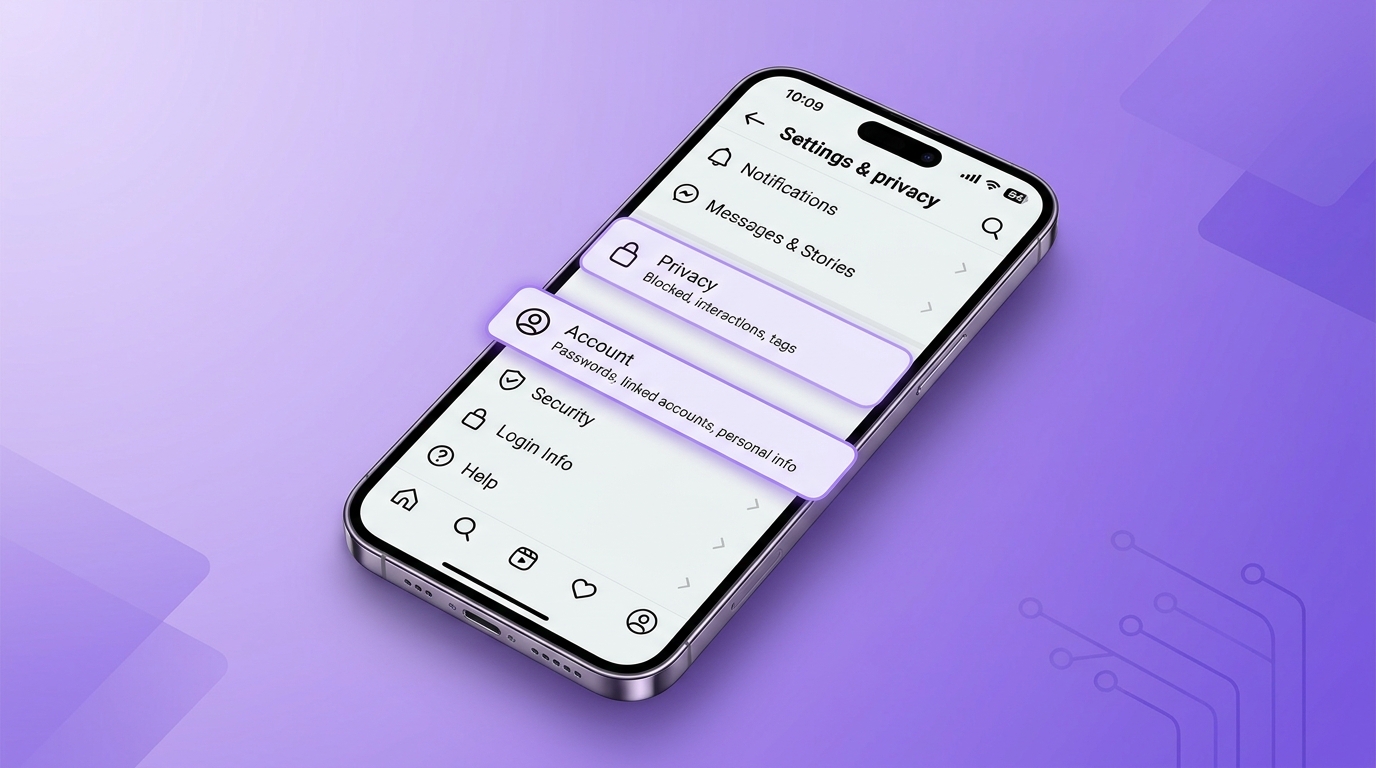
When you delete your Instagram account permanently, you remove your profile, photos, videos, comments, likes, and follower list. Meta processes this through Accounts Center, which controls all connected Meta accounts. Before you begin, complete this preparation checklist.
- Download your Instagram data (see the next section for steps)
- Save any photos or videos you want to keep
- Inform close contacts who may try to reach you via DMs
- Unlink third-party apps that use Instagram login
- Remove your account from any shared business pages or ad accounts
- Disable two-factor authentication apps tied to this account
Steps on Mobile (iPhone or Android)
- Open the Instagram app and log in to the account you want to delete.
- Tap your profile picture in the bottom-right corner.
- Tap the three horizontal lines (hamburger menu) in the top-right corner.
- Select Settings and privacy.
- Tap Accounts Center (near the top of the settings list).
- Go to Personal details and then tap Account ownership and control.
- Select Deactivation or deletion.
- Choose the account you want to delete if you have multiple accounts linked.
- Select Delete account and tap Continue.
- Choose a reason for leaving, re-enter your password, and confirm.
Your account is now hidden from public view. Instagram begins the 30-day grace period. If you log in at any point during that window, the deletion is automatically cancelled.
Steps on Desktop (PC or Mac)
- Go to instagram.com and sign in.
- Click your profile picture in the top-right corner, then click Settings.
- In the left sidebar, click Accounts Center.
- Navigate to Personal details > Account ownership and control > Deactivation or deletion.
- Select your account, choose Delete account, and click Continue.
- Enter your password, select a reason, and confirm the deletion.
The process is identical to mobile. The same 30-day grace period applies regardless of which device you use.
This is irreversible after 30 days. Once the grace period expires, your account and all associated content are permanently removed. Meta may retain some data in compliance with legal obligations, but you will lose all access to your profile, posts, messages, and followers.
Common Issues and Fixes
- Cannot find Accounts Center: Make sure your Instagram app is updated to the latest version. On older versions, look under "Account" instead of "Accounts Center."
- Forgot your password: Tap "Forgot password?" on the login screen. Instagram sends a reset link to your registered email or phone number.
- Business or Creator account: If your account is linked to a Facebook Business Manager page or an active ad account, you may need to transfer page ownership or close the ad account before deletion will proceed.
- Two-factor authentication blocking you: Complete the 2FA prompt (SMS code or authentication app) before the settings page loads. If you have lost access to your 2FA device, use one of your backup codes.
- Accounts Center is not loading: Clear the app cache (Settings > Apps > Instagram > Clear Cache on Android, or delete and reinstall on iPhone), try an incognito browser window, or switch between the app and web interface.
How to Deactivate Your Instagram Account Temporarily
If full deletion feels too permanent, choosing to deactivate your Instagram account gives you a clean break without losing anything. Your profile, posts, followers, and messages are all preserved — they just become invisible to everyone else until you decide to return.
Steps on Mobile
- Open the Instagram app and go to your profile.
- Tap the three horizontal lines in the top-right corner, then select Settings and privacy.
- Tap Accounts Center.
- Go to Personal details > Account ownership and control > Deactivation or deletion.
- Select the account you want to deactivate.
- Choose Deactivate account (not "Delete account") and tap Continue.
- Select a reason, enter your password, and confirm.
Your profile is hidden immediately. No one can find you through search, and your posts, stories, and reels disappear from feeds.
Steps on Desktop
- Go to instagram.com and sign in.
- Click your profile picture, then Settings.
- Open Accounts Center > Personal details > Account ownership and control > Deactivation or deletion.
- Select your account, choose Deactivate account, and click Continue.
- Enter your password, pick a reason, and confirm.
To reactivate, simply log back in with your username and password. Your profile, posts, and followers will be restored — though it may take a few minutes for everything to reappear across the platform.
What Happens When You Deactivate
Understanding the side effects of deactivation helps you avoid surprises:
- Your profile disappears from search results, follower lists, and the Explore page. Anyone who visits your profile URL sees a "User not found" message.
- Your posts and stories vanish from all feeds, but they are not deleted. They return the moment you reactivate.
- Direct messages you previously sent remain visible to recipients. Deactivation does not retract or hide your DMs from other people's inboxes.
- Tagged content may still appear on other users' posts, though your profile link will be inactive.
- Linked accounts are unaffected. Deactivating Instagram does not deactivate your Facebook, Threads, or WhatsApp accounts. Each must be managed separately through Accounts Center.
Frequency limit: Instagram may restrict how often you can deactivate and reactivate your account within a short period. If you plan to toggle frequently, be aware that Meta may enforce a waiting period before you can deactivate again.
One common question is how long you can keep your account deactivated. There is no official time limit. Your account remains hidden indefinitely until you log back in. Instagram does not automatically delete deactivated accounts after any set period, so you can take a break for weeks, months, or even years without losing your data.
How to Download Your Instagram Data Before Leaving
Regardless of whether you plan to delete or deactivate your Instagram account, downloading your data ensures you have a personal copy of everything — photos, videos, messages, profile information, login history, and more. This is especially important before deletion, since you will not be able to retrieve any of this content afterward.

Request your data at least 48 hours before you plan to delete. Instagram can take anywhere from a few minutes to two full days to prepare your download file, depending on account size and server load.
How to request your data
On mobile:
- Open Instagram and go to Settings and privacy.
- Tap Accounts Center > Your information and permissions > Download your information.
- Select the account you want to download.
- Choose Complete copy for everything, or Select types of information to pick specific categories (posts, messages, stories, etc.).
- Choose the file format: HTML (easy to browse) or JSON (machine-readable).
- Select the date range and tap Submit request.
On desktop:
- Go to instagram.com > Settings > Accounts Center > Your information and permissions > Download your information.
- Follow the same selection process as mobile.
Instagram sends an email notification when your download is ready. You will have a limited time to download the file before the link expires, so act promptly.
What is included in the download
Your data package contains a structured archive with folders for:
- Posts, stories, and reels — original media files
- Messages — full conversation history in HTML or JSON format
- Profile information — bio, profile photo, contact details
- Login activity — IP addresses, devices, and timestamps
- Search history — everything you have searched on the platform
- Ads data — ads you have interacted with and interest categories Instagram assigned to you
- Liked posts and comments — a record of your engagement activity
Store this archive in a secure location. Consider saving it to a cloud service like Google Drive, iCloud, or Dropbox as a backup.
Recovering a Deleted Instagram Account
Changed your mind after choosing to delete or deactivate Instagram account? Recovery is possible, but only within a narrow window. The sooner you act, the better your chances.
During the 30-day grace period
If you initiated deletion and fewer than 30 days have passed, recovery is straightforward:
- Open the Instagram app or go to instagram.com.
- Log in with your original username and password.
- Instagram displays a prompt asking if you want to keep your account.
- Confirm that you want to cancel the deletion.
That is all it takes. Your profile, posts, followers, and messages are fully restored. The deletion request is cancelled, and your account returns to its normal active state.
Why does deletion take so long? Instagram's 30-day grace period exists specifically to protect users from accidental or impulsive deletions. During this window, Meta begins processing the removal but does not finalize it. This is also why some users feel the process "takes forever" — the delay is intentional and works in your favor if you change your mind.
After the 30-day grace period
Once the grace period expires, Instagram permanently removes your account data from its live systems. At this point, standard recovery is no longer available. However, there are a few last-resort options:
- Official appeal to Meta: Visit the Instagram Help Center and submit a support request. Explain your situation and provide proof of account ownership (email address, phone number, previous login activity). Success rates are low, and Meta does not guarantee any response timeline.
- Hacked account recovery: If your account was deleted by someone who gained unauthorized access, Instagram has a dedicated recovery flow. Go to the Help Center, select "Hacked accounts," and follow the identity verification steps. You may be asked to submit a video selfie or a photo of your government ID.
- Legal or business reasons: In rare cases involving legal proceedings or regulatory requirements, Meta may be able to retrieve certain data. This typically requires formal legal process, not a standard support request.
After 30 days, recovery is extremely unlikely. Do not rely on the appeal process as a safety net. If there is any chance you might want your account back, cancel the deletion before the grace period ends.
Protecting against unwanted deletion
To reduce the risk of accidental or unauthorized account deletion:
- Enable two-factor authentication (SMS + authentication app for maximum protection)
- Use a strong, unique password that you do not reuse on other sites
- Keep your recovery email and phone number up to date in Accounts Center
- Review login activity regularly (Settings > Security > Login Activity) and remove any devices you do not recognize
Can You Get Back Deleted Instagram Messages?
Short answer: not reliably. Instagram does not include a "trash" or "undo" feature for Direct Messages. Once you delete a conversation from your inbox, it is gone from your side of the chat. However, depending on your situation, there are several approaches worth trying.
- Use Instagram's Download Your Information tool (most reliable)
- Restore from a device backup made before the messages were deleted
- Ask the other participant to forward or screenshot the conversation
- Contact Meta support for business or legal situations
- Use third-party data recovery software on your device (use with caution)
Method 1: Download Your Information
If you requested a data download before deleting the messages — or before deleting your account — the archive may contain your message history. Look for the "Messages" folder in the downloaded ZIP file. Conversations are stored in HTML or JSON format, depending on the option you chose during the export.
If you have not requested a download yet and your account is still active, do it now. Even if the messages are deleted from the app interface, the data export sometimes includes conversation history that is still in Meta's systems.
Method 2: Device backups
iPhone users with iCloud backups and Android users with Google Drive backups may be able to restore messages by reverting to an older backup. This requires a full device restore, which overwrites current data — so weigh the trade-offs carefully.
Method 3: Ask the other person
Messages you deleted only disappear from your inbox. The other participant still has the full conversation unless they also deleted it or you used the "unsend" feature. If the content is important, simply ask them to share it.
Method 4: Meta support
For business accounts involved in legal disputes, or for accounts that were hacked and had messages deleted, Meta's support team may be able to assist. File a request through the Instagram Help Center. Provide as much identifying information as possible — account name, email, approximate dates of the conversations, and the reason for your request.
Method 5: Third-party recovery tools
Some desktop and mobile utilities claim to scan your device storage or backup files for deleted app data. These tools work by searching for database fragments that have not yet been overwritten. Use extreme caution: only download software from verified developers, never share your Instagram password with any third-party tool, and read independent reviews before installing anything. Official methods are always safer and more reliable.
How to Recover Deleted Instagram Posts and Stories
Unlike messages, Instagram gives you a built-in safety net for deleted posts. The Recently Deleted folder holds removed content for a limited time, making post recovery significantly easier than message recovery.
How to restore from Recently Deleted
- Open Instagram and go to your Profile.
- Tap the three horizontal lines (menu) in the top-right corner.
- Select Your Activity.
- Tap Recently Deleted.
- Browse through the deleted items — posts, reels, stories, and IGTV videos each have their own category.
- Select the item you want to restore and tap Restore.
Retention periods:
- Posts, reels, and videos: Held for 30 days before permanent deletion
- Stories: Held for 24 hours only (unless they were saved to your Story Highlights or Archive before deletion)
If you enabled story archiving (Settings > Privacy > Story > Save Story to Archive), your stories are automatically preserved even after they expire from your feed.
Archive instead of delete. If you want to hide a post from your profile without losing it permanently, use the Archive feature. Go to the post, tap the three dots, and select Archive. The post becomes invisible to everyone except you, and you can restore it to your profile at any time.
If the content is not in Recently Deleted
When the retention window has closed, your options narrow considerably:
- Data download: If you requested a data export before the content was removed, the original media files should be in the archive.
- Device storage: Photos and videos you posted may still exist in your phone's camera roll or gallery, since Instagram does not delete the original files from your device.
- Cloud backups: Check iCloud Photos, Google Photos, or any other cloud sync service that may have backed up the original media automatically.
- Cached thumbnails: Some file manager apps can recover cached versions of images from the Instagram app's storage, though these are often lower resolution.
For content that is truly gone from all sources, there is no recovery path. This is why downloading your data before making any account changes is the single most important step you can take.
Alternatives to Deletion: Privacy Controls Worth Trying
Not everyone searching for how to delete or deactivate Instagram account actually needs to leave. If your frustration is about privacy, unwanted interactions, or spending too much time scrolling, Instagram offers several controls that may solve the problem without the finality of deletion.
You do not have to leave. Sometimes adjusting a few settings eliminates the issues that made you want to delete your account in the first place.
Switch to a private account
A private account hides your posts, stories, and reels from anyone who does not follow you. Only approved followers can see your content. New follow requests require your manual approval.
Go to Settings > Privacy > Account Privacy and toggle Private Account on. This is one of the most effective single changes you can make for controlling who sees your content.
Restrict and block specific users
Instead of leaving Instagram entirely because of one or two problematic accounts, use the Restrict feature. Restricted users can still see your posts, but their comments are hidden from everyone except themselves, and their DMs go to a filtered inbox you do not get notified about.
For more serious situations, blocking prevents the user from finding your profile, viewing your content, or contacting you in any way.
Mute accounts without unfollowing
If certain accounts are cluttering your feed and contributing to digital fatigue, mute them. Muted accounts have no idea they have been muted — their posts and stories simply stop appearing in your feed. You remain following them, and there is no social awkwardness.
Set daily time limits
Instagram has a built-in Daily Reminder feature. Go to Settings > Time Spent > Set Daily Reminder and choose a time limit. When you hit the threshold, Instagram displays a notification. While it does not lock you out, the nudge is effective for building better habits.
Remove followers without blocking
If you want to reduce your audience without the confrontation of blocking, you can remove individual followers from your followers list. The person is not notified, and they simply stop seeing your posts in their feed. They can still visit your profile and follow you again if your account is public.
These controls, used individually or in combination, give you significant power over your Instagram experience. If the core problem is not Instagram itself but specific aspects of how you use it, adjusting settings is a lower-risk solution than permanent deletion.
What's Your Next Step?
Now that you know how to delete or deactivate Instagram account access, the decision comes down to what you need right now. If you want a temporary break with zero risk, deactivate — your content, followers, and messages stay safe until you return. If you have firmly decided to leave Instagram behind, delete — but only after downloading your data and waiting through the 30-day grace period to make sure you will not regret it.
Regardless of which path you choose, here are the key official resources to bookmark:
- Permanently delete or deactivate your Instagram account — Instagram Help Center
- Download your information — data export instructions
- Restore content you've deleted — Recently Deleted folder guide
- About Accounts Center — managing connected Meta accounts
And if you are on the fence about leaving, revisit the privacy controls section above. A few setting adjustments might give you the experience you actually want — without losing the connections and content you have built.
Decided to stay and grow? If you are keeping your account and want to expand your reach, FiveBBC provides Instagram growth tools — from followers and likes to views and engagement. Explore Instagram services to see how real, gradual delivery can help you reach your next milestone.